
Adding a new teammate to Leadvista AI happens in two parts. 🙋 An admin invites them as a Member. Then 📤 the teammate signs up and adds their own LinkedIn as a Sender. This article walks you through the full flow.
👉 Note: A Member is a person with workspace access. A Sender is a LinkedIn account that does outreach. They are not the same thing. A teammate is usually both — but added in two separate steps.
Member vs. Sender — what's the difference?
| Role | What it is | Who creates it |
|---|---|---|
| Member | A person with login access to the agent. They can view campaigns, leads, and the inbox. | An Admin invites them by email. |
| Sender | A LinkedIn account for outreach — sending invites, messages, and visiting profiles. | The teammate adds their own LinkedIn, on their own computer. |
⚠️ Why this matters: Inviting someone as a Member does not make them a Sender. They still need to add their LinkedIn themselves. Likewise, you can have Senders without Members — but for a regular team, each person is usually both.
What you need before you start
- The teammate's email address
- Admin role on the agent (only Admins can invite Members)
- The teammate has their own LinkedIn account
- 🌐 The teammate uses Google Chrome (the extension is required)
The flow at a glance
- 🙋 Admin invites the teammate as a Member (30 seconds).
- 📝 Teammate signs up at the Leadvista AI app with the same email.
- 🌐 Teammate installs the Chrome extension.
- Teammate logs into their own LinkedIn in the same Chrome.
- 📤 Teammate adds their LinkedIn as a Sender on the agent.
Step 1 — Admin invites the teammate as a Member
Go to your agent and click the Members tab. Click Add new members in the top right.
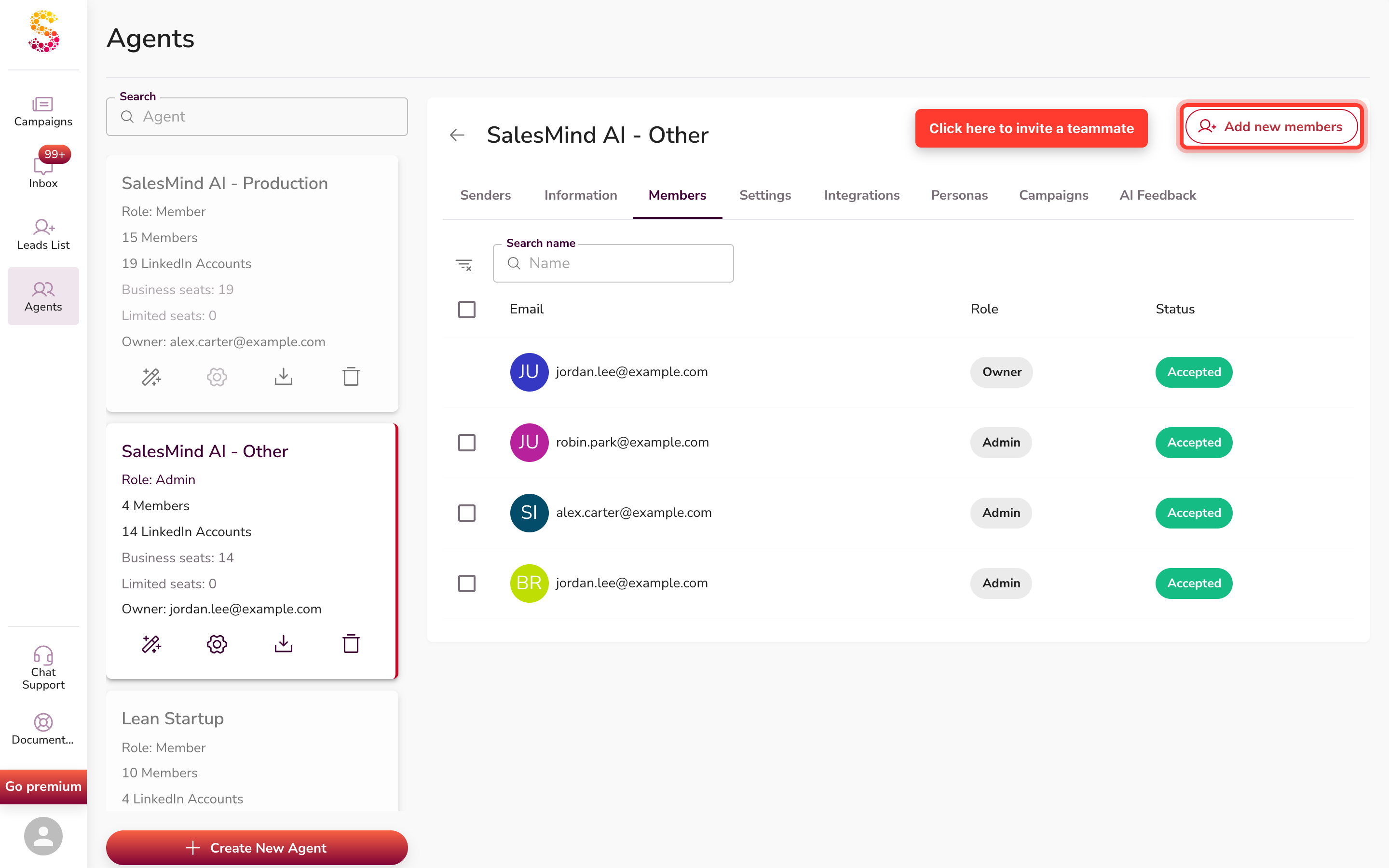
A short form appears with:

- Email address — type the teammate's email.
- Role — pick Member (or Admin if they need to delete data or manage others).
- Click Add member. That's it.
💡 Tip: When in doubt, pick Member. You can promote them to Admin later. Admin gives delete rights — only give it to people who need it.
Step 2 — Teammate signs up
The teammate gets an invite email. But they don't have to wait for it. They can sign up right away — the invite is already linked to their email.
Two ways to sign up:
- From the email — click the link. Their email is pre-filled.
- Direct sign-up — go to the Leadvista AI app and create an account with the same email.
⚠️ Warning: They must use the exact email you invited. If you invited
alex@company.combut they sign up asalex@personal.com, the invite won't apply.
Step 3 — Install the Chrome extension
Once signed in, the teammate installs the 🌐 Leadvista AI Chrome extension. It reads their active LinkedIn session safely — no passwords stored, no extra login.
👉 Note: This must happen on the teammate's own computer, in the Chrome where they normally use LinkedIn. Not a shared computer or remote desktop.
Step 4 — Log into LinkedIn
In the same Chrome browser, the teammate opens linkedin.com and logs in. Just normal LinkedIn — no special setup. The browser session decides which LinkedIn becomes the Sender.
Step 5 — Add LinkedIn as a Sender
Back in the app, the teammate goes to the Senders tab and clicks Add new Sender.
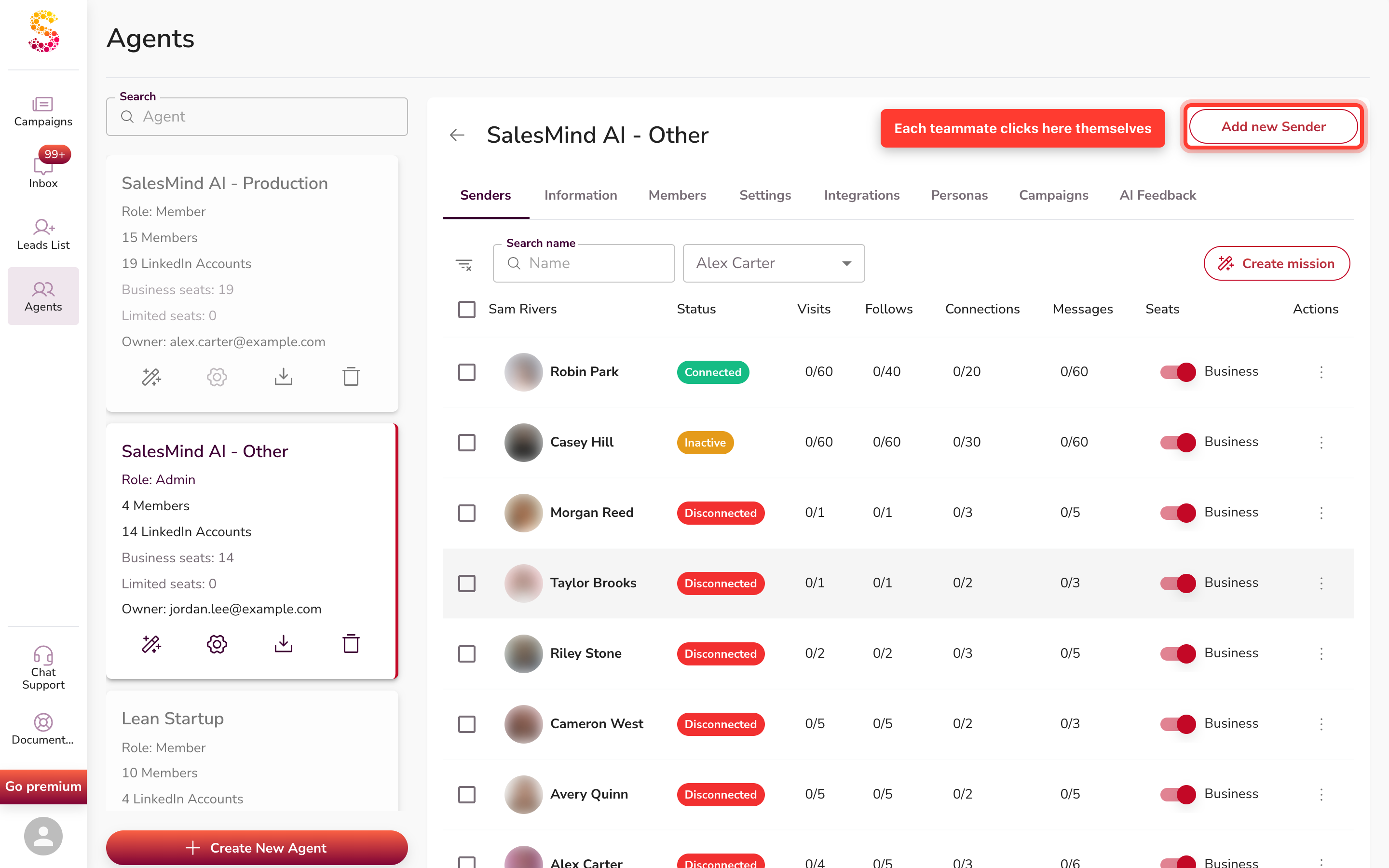
They follow the prompts and click Connect. Their account shows up as a Connected Sender.
💡 Tip: After connecting, anyone with Member access can build campaigns that use this Sender.
Why can't the admin add another person's LinkedIn?
🔒 This is by design. Leadvista AI reads the active LinkedIn session from the Chrome extension — which lives on the teammate's own computer. We never store LinkedIn passwords. There's nothing for an admin to copy or paste.
The teammate has to be physically logged into their LinkedIn for the connection to work. This keeps accounts safe. The trade-off: each teammate spends about 5 minutes on Steps 3 to 5.
FAQ
Q: Do all teammates need to be Admin? No. Member is enough to be a Sender. Admin is only needed for deleting data or inviting others.
Q: What if they don't get the invite email? They can still sign up with the invited email. The email is just a notification — the invitation is stored against the email address, not the link.
Q: Can one teammate add multiple LinkedIn accounts? Yes. They repeat Steps 3 to 5 for each account, switching the active LinkedIn session in Chrome between connections.
Q: Can I add a Sender without inviting a Member first? You can, but only via agency methods. For a regular team, the Member-first flow is simpler and gives the teammate full access.
Common Pitfalls
- Different email. Invite one email, sign up with another = invite won't apply.
- Forgetting Step 4. Extension installed but not logged into LinkedIn = Sender add fails.
- Wrong browser. Only Chrome with the extension works. Safari, Firefox, and Edge are not supported.
- Member ≠ Sender. Inviting a Member does not create a Sender. Each person must do Steps 3 to 5.
Key Takeaways
- 🙋 Member ≠ 📤 Sender. Members get workspace access. Senders are LinkedIn accounts.
- Admin invites the Member. The teammate adds their own Sender. These are separate steps.
- Senders are added on the teammate's own computer, in their Chrome, on their LinkedIn login.
- One LinkedIn = one Sender. Add more by repeating the connection flow.
- Total time: ~5 minutes per teammate, once they have Chrome and LinkedIn ready.