
Prerequisites
Before inviting a teammate, make sure you have Admin access to the agent. Only Admins can manage members.
How to Invite a Teammate
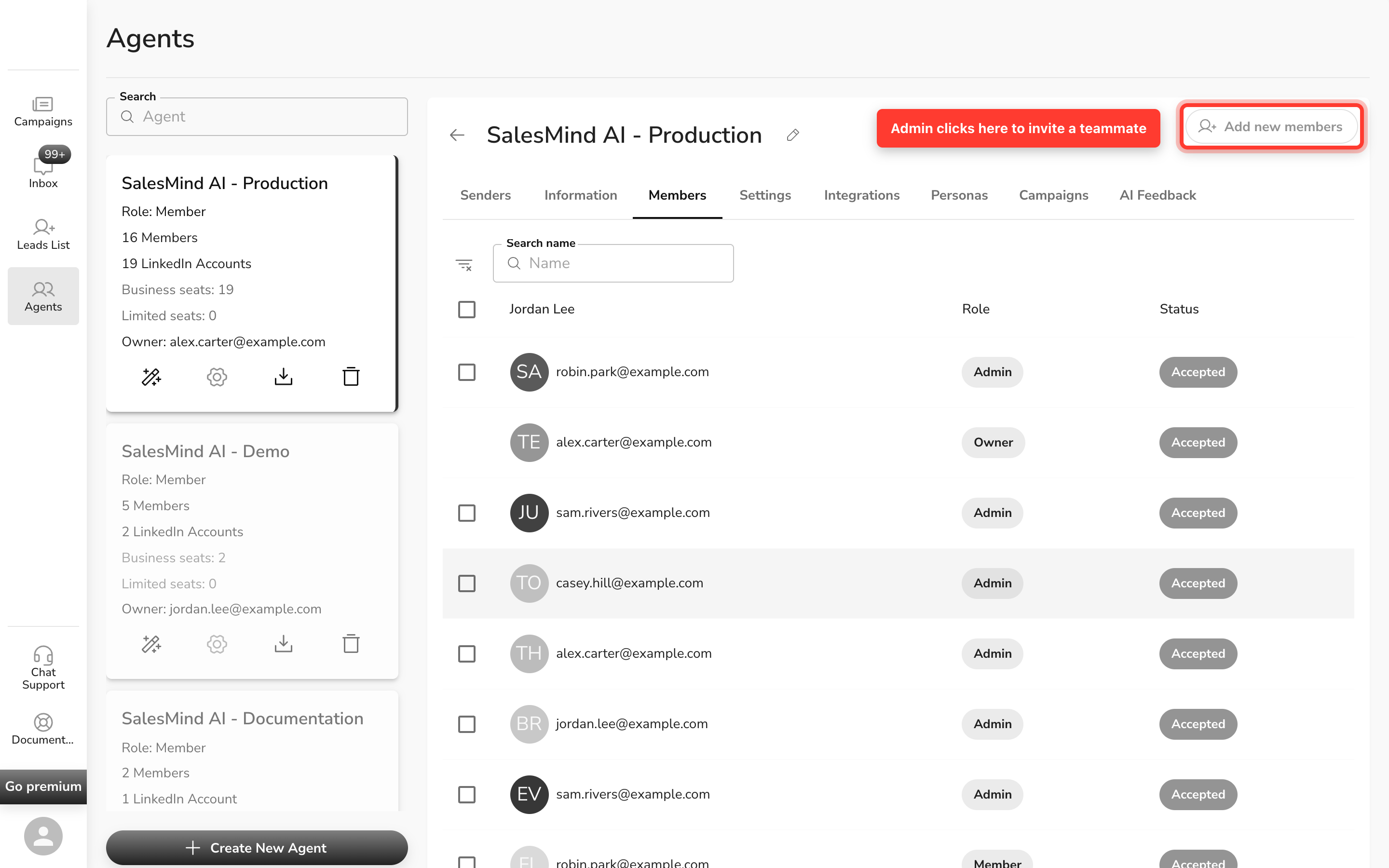
- Open your Agent and click the Members tab.
- Click Add Member.
- Enter your teammate's email address.
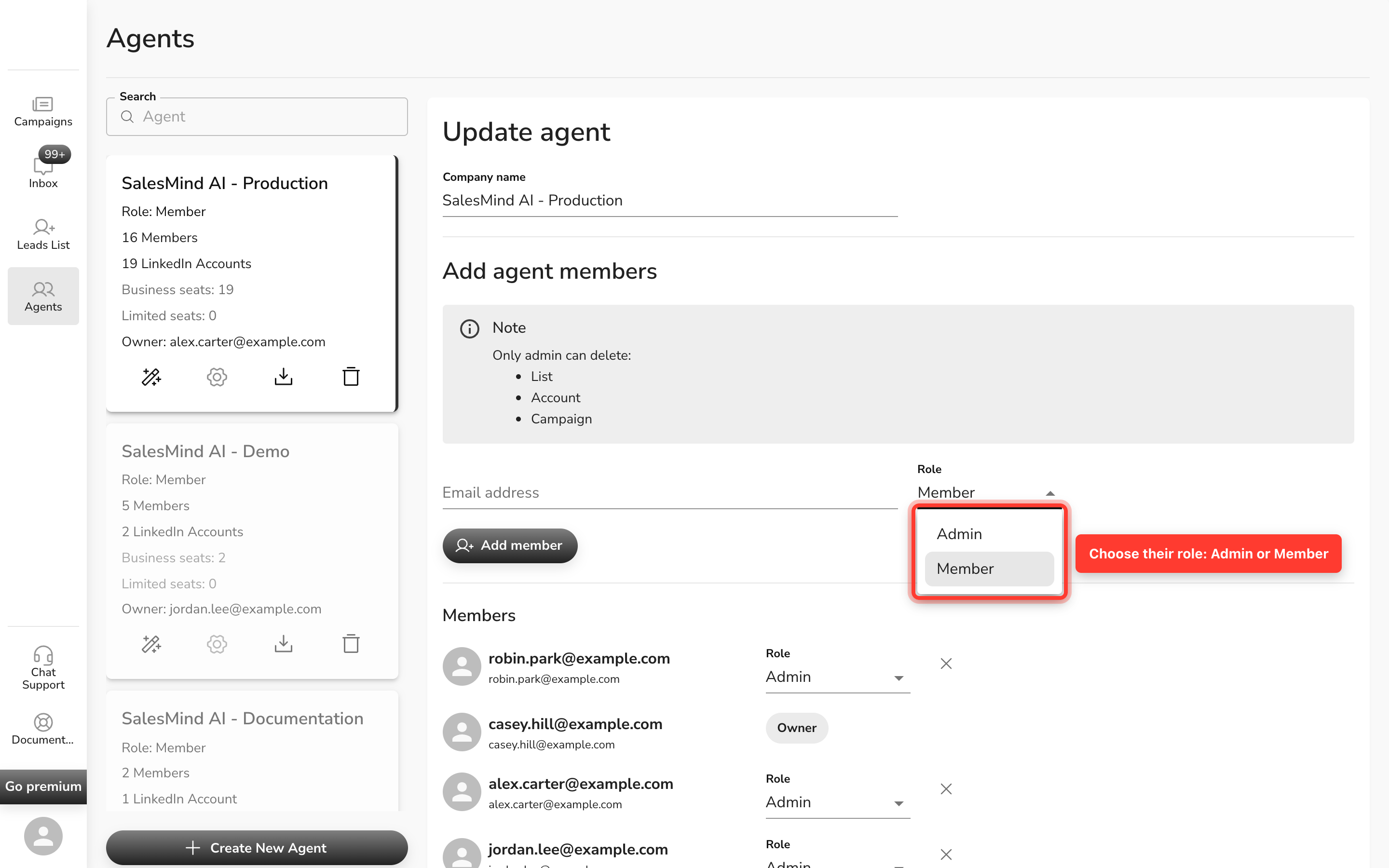
- Choose their role: Admin or Member.
- Click Add Member to confirm.
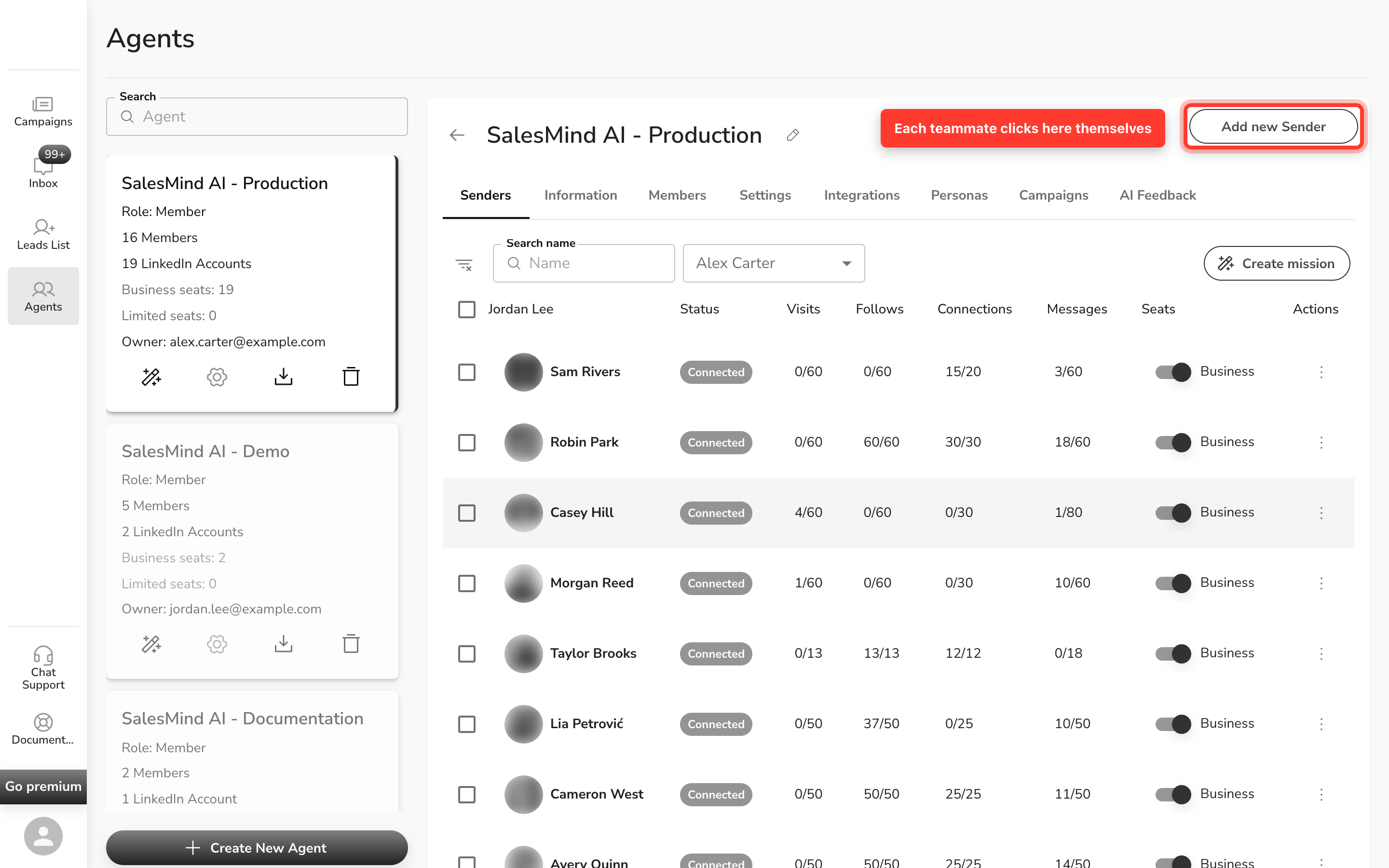
Your teammate gets an email invitation. They can also sign up right away at the Leadvista AI app using the invited email — the email is a confirmation, not a gate. As soon as they sign up (or sign in if they already have an account) with the same email address, they show up in your agent as a Member.

Understanding Roles
| Role | What they can do |
|---|---|
| Member | Create and manage campaigns, lists, and conversations |
| Admin | Everything a Member can do, plus delete lists, accounts, and campaigns |
⚠️ Warning: Deletion is permanent. Only assign Admin to teammates who genuinely need it.
💡 Tip: When in doubt, start teammates as Members. You can always upgrade their role later.
What Is the Agent Owner?
Every agent has one owner. The owner is usually the person who created the agent. The owner is always also an Admin — "owner" is not a separate permission level, just a single person tied to the agent.
Because the owner is an Admin, they can do everything an Admin can do. Only a few things are unique to the owner:
- Only the owner can transfer the agent to someone else (see below).
- The owner can't be removed or demoted by other Admins.
- The agent's plan and seats are tied to the owner's account — see the billing note below.
Everything else — inviting or removing members, editing settings, even deleting the agent — is available to any Admin, not just the owner. For a full breakdown of what each role can do, see Member Roles and Permissions in Agents.
💳 Billing tip: the owner should be the one who pays. An agent's plan and seats are credited only to the account that pays for them — and only to agents that account owns. If a different member pays under a different email, the charge still goes through in Leadvista AI's payment provider, but the seats attach to that person's account instead of the agent — so the agent shows no new seats. To add or renew seats, make sure the owner is the one subscribing.
Transfer Agent Ownership
Sometimes the person who owns an agent needs to hand it over. Maybe you're leaving the company, changing roles, or a teammate should run the agent from now on. You can transfer ownership to any teammate who has already joined the agent.
Only the current owner can do this. If you're not the owner, you won't see the option.
Before you start: the person you're transferring to must already be a member of the agent and must have accepted their invitation. You can't transfer ownership to someone who hasn't joined yet.
To transfer ownership:
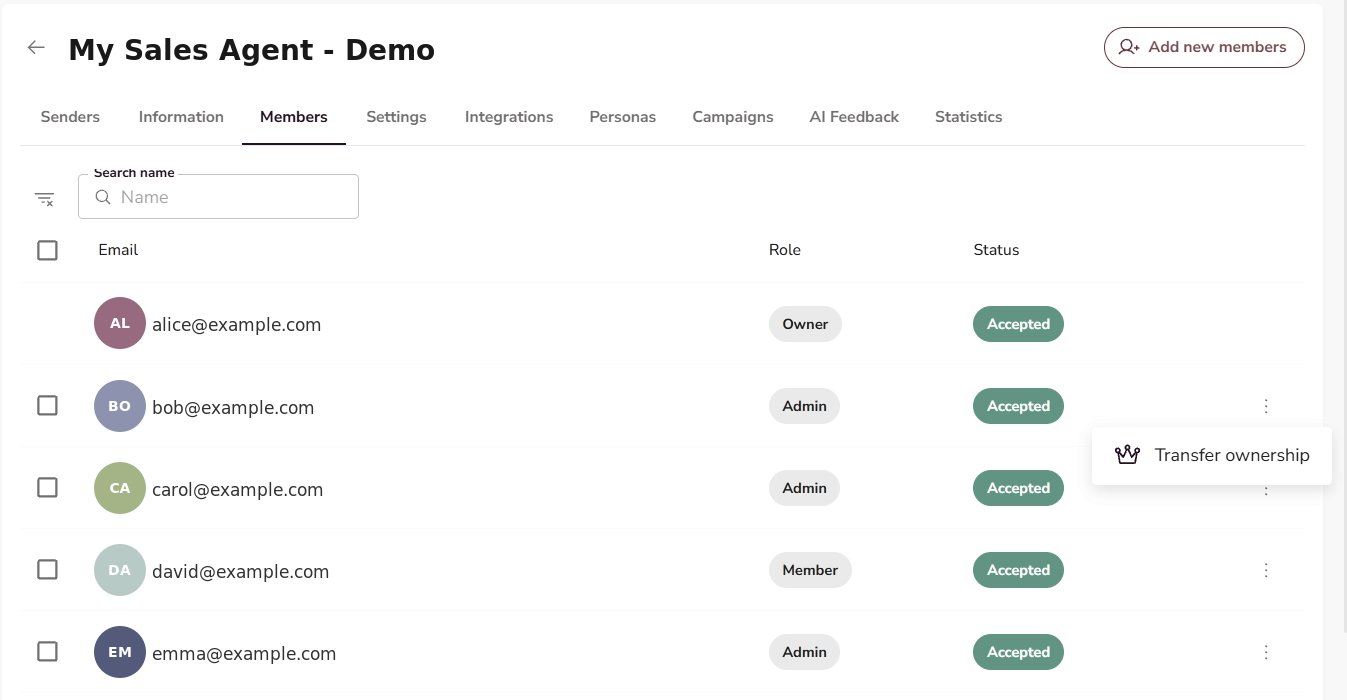
- Open your Agent and click the Members tab.
 2. Find the member you want to make the new owner.
3. Click the ⋮ (three-dot) menu next to their name.
4. Choose Transfer ownership.
5. Read the warning, then confirm.
2. Find the member you want to make the new owner.
3. Click the ⋮ (three-dot) menu next to their name.
4. Choose Transfer ownership.
5. Read the warning, then confirm.
After the transfer:
- The teammate you chose becomes the new owner.
- You stay on the agent as an Admin, so you keep full management access.
- The new owner also holds the Admin role.
⚠️ Warning: This action is effectively permanent. The only way to undo it is for the new owner to transfer ownership back to you. Make sure you're handing the agent to the right person.
What's Next
👉 Important: Inviting someone as a Member is only the first step. If your teammate also needs to send outreach from their own LinkedIn, they have to add themselves as a Sender. Senders are connected per-person — admins can't do it for them. See the full flow in How a Teammate Becomes a Sender.
- See How a Teammate Becomes a Sender for the end-to-end onboarding flow (Member to Sender).
- See Member Roles and Permissions in Agents for a full breakdown of what each role can and can't do.
- To manage your agent's settings, see Managing an Agent.
FAQ
Is "Owner" a role? How is it different from Admin?
No — "owner" isn't a separate role. The owner is a single person, and they're always also an Admin. The difference: only the owner can transfer the agent, and the owner can't be removed or demoted by other Admins.
Can I transfer ownership of an agent to another team member?
Yes. Open the agent's Members tab, click the ⋮ menu next to the member, and choose Transfer ownership. Only the current owner sees this option.
What happens to me after I transfer ownership?
You stay on the agent as an Admin. You keep full management access — members, campaigns, and settings — you just no longer hold the owner role.
I'm leaving the company. How do I hand my agent to someone else?
First make sure they've joined the agent and accepted their invitation. Then use Transfer ownership from the Members tab to make them the new owner.
Can another team member pay for the agent's subscription?
It's best to let the owner pay. Plans and seats are credited only to the account that pays, and only to agents that account owns. If someone else pays under a different email, the charge still goes through, but the seats land on their account instead of the agent — so the agent gets no new seats.