
You pressed Launch. Your campaign is now running, your leads are entering the sequence, and your agent is sending the first messages.
So what do you do next?
This guide is Part 2 of the campaign series. Part 1 showed you how to build and launch a campaign. This one walks you through the most common moments you will face once a campaign is live: finishing the campaign, refreshing it with more leads, slowing it down, tweaking the sequence, or duplicating it.
Need one thing fast? This guide shows you how to pause new outreach — a soft pause that stops new leads from entering while your active conversations continue as normal — and when to use a full pause instead. It also covers how to resume a paused campaign (turn a campaign back on, restart outreach, or unpause it), how to duplicate with leads, and how to stop messaging one person by terminating the lead from the Inbox.
Prerequisites
- A live campaign in Leadvista AI
- LinkedIn account connected via the Chrome extension
- Member or Admin role on the agent
When Your Campaign Is Running Out of Leads
The first signal is in the Sequence graph at the top of your campaign view. When every touchpoint of the graph climbs toward 100%, it means most of your leads have already moved through every step of the sequence. The fresh-lead pool is running low.
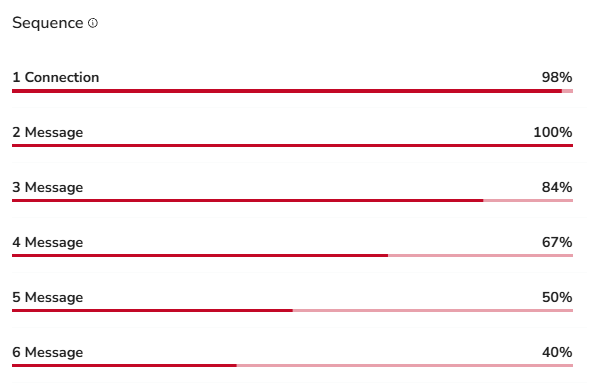
A good moment to act is when the first step of the sequence graph reaches 90% or more. That means almost every lead has been contacted, so the pool is nearly empty.
When this happens, you have three options.
Option A — Let the Campaign Finish
If you have covered the full audience and you do not want to extend the campaign, just let it run its course.
A campaign turns to Complete on its own when both of these are true:
- Every lead has finished the full sequence (each step shows 100%)
- There has been no activity for 14 days — no new messages, no replies, no new outreach
Once both conditions are met, the status switches to Complete on its own. You do not need to do anything.
When a campaign is complete, you can archive it. Never delete it — deleting wipes all the data. Archiving keeps everything: the leads, the stats, the full history. Just keep in mind that once you archive a campaign, you cannot make it live again.

Option B — Add More Leads
If the campaign is doing well — high acceptance rate, high reply rate, meetings on the calendar — you probably want to keep it running. The cleanest way is to add a new batch of leads to the same campaign.
To add more leads:
- Click the three-dot menu on that campaign's row
- Click Edit
- Click Leads (the green text)
- Click Add Leads List (top-right corner)
- Select the method you want to use to add new leads

💡 Tip: If your first batch performed well, it usually means your persona and your first message are well aligned. Keep both, and just feed in fresh leads.
For the lead-import options — AI Lead Finder, Sales Navigator, Google Sheets, your own lists, and more — see the lead import guides in the Related Articles section at the bottom of this page.
Option C — Start a New Mission
You can also let the current campaign finish and start a new mission to bring in a fresh batch of leads. This is the cleanest choice when you want to keep reaching new people without touching a campaign that is winding down.
Do this when the first step of the sequence graph in the old campaign is at 90% or more. At that point most of your current leads have been reached, so a new mission gives your agent fresh people to work with.
👉 Note: A new mission creates brand-new campaigns for you. Add more leads (Option B) when you want to top up the same campaign. Start a new mission when you want to launch new, fresh campaigns.
For older campaigns, you have a simpler choice. If they still bring results, let them finish. If they are not that productive anymore, Pause new outreach (see the next section) so you stop spending your daily quotas on them.
When Your Campaign Underperforms — Use Soft Pause
If your acceptance rate and reply rate both fall below 15%, your campaign is probably reaching the wrong people or sending the wrong message. You can stop wasting your daily quotas on the wrong leads without losing the leads you have already reached.
The instinct is to hit the full Pause button. Do not. A full pause stops everything at once. Your warm leads — the ones who just accepted, just replied, or were about to reply — get frozen mid-sequence. By the time you turn the campaign back on, they have moved on. The momentum is lost.
There is a smarter option: Pause New Outreach.
What "Pause New Outreach" Actually Does
Think of it as a soft pause. Two things happen at the same time:
- New leads stop entering the sequence. Leadvista AI will not send any new connection requests or follows from this campaign.
- Existing leads keep moving forward. Anyone already in the sequence finishes every remaining step normally. Replies still come in, follow-ups still go out, warm leads stay warm.
The result: your warm and hot leads keep getting nurtured all the way to the end of the sequence, while your daily LinkedIn outreach budget is freed up for campaigns that are actually working.
How to Turn It On
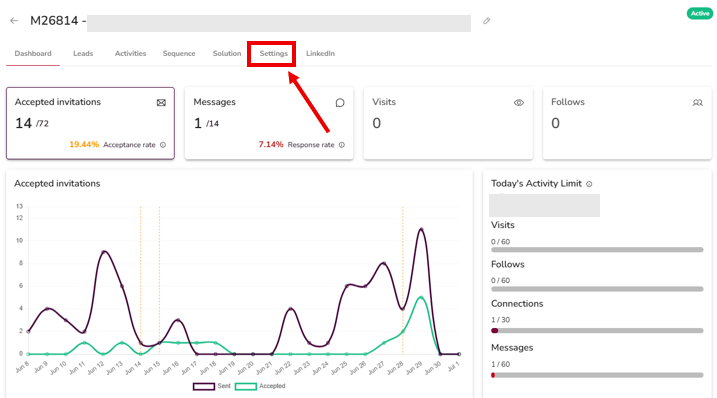
The on/off toggle for Pause New Outreach lives on the campaign's Settings tab. To turn it on:
- Open the campaign
- Click the Settings tab on the campaign page (not the global Settings menu in the sidebar)
- Toggle Pause New Outreach to On
The campaign stops taking new leads, while your active conversations continue as normal — everyone already in the sequence finishes their remaining steps.
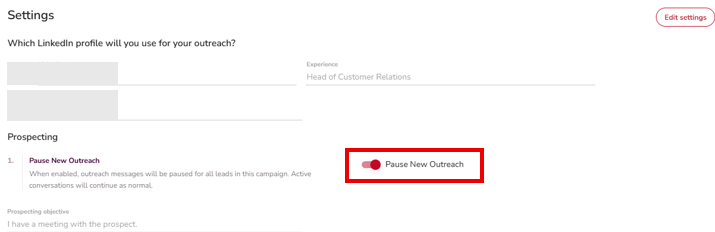
Turn it back off the same way, any time. When you do, the campaign starts adding new leads again — picking up right where it left off.
Looking for the campaigns you have already soft-paused? Use the Status filter at the top of the campaigns list to find them. The filter only locates paused campaigns — it is not where you switch the pause on or off.
👉 Note: Use Pause New Outreach whenever you want to wind a campaign down without killing it: end-of-quarter cleanup, persona pivots, or while you A/B test a new variant.
What You Can (and Cannot) Edit After Launch
Once a campaign is live, your agent has already scheduled actions for the leads inside the sequence. To protect those leads from getting confused or mixed-up messages, Leadvista AI locks a few things.
What You Cannot Change After Launch
| What | Why it is locked |
|---|---|
| The number of sequence steps (you cannot add or remove touchpoints) | Leads are mid-sequence. Adding or removing steps would break their schedule. |
| The order of the sequence steps | Same reason — leads are partway through, and re-shuffling would mix the conversation. |
| The writer of a step (AI vs human) | Switching mid-flight would change the voice halfway through a conversation. |
If you need to change any of these, duplicate the campaign instead and edit the copy before launching (see the next section).
What You Can Still Change
Two things stay flexible inside the Sequence tab:
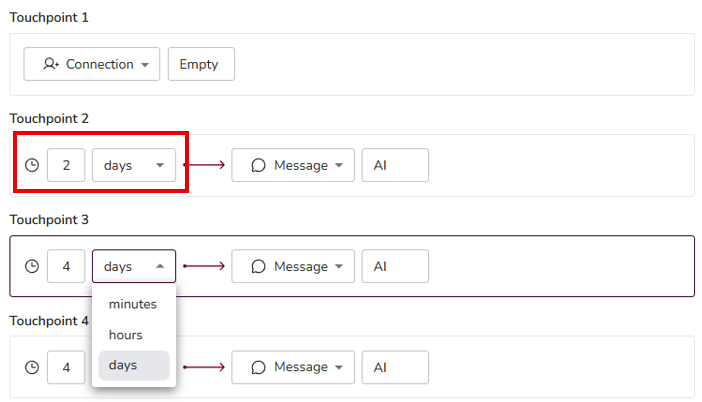
1. The Time Frame Between Sequence Steps
You can change how many days Leadvista AI waits between one touchpoint and the next. Stretch the gap out or tighten it as you learn what works.
2. The Message Instruction
You can change the message at any step, no matter who the writer is:
- If the writer is AI — edit the prompt.
- If the writer is human — edit the text directly. The new text will be sent to leads from this step forward.
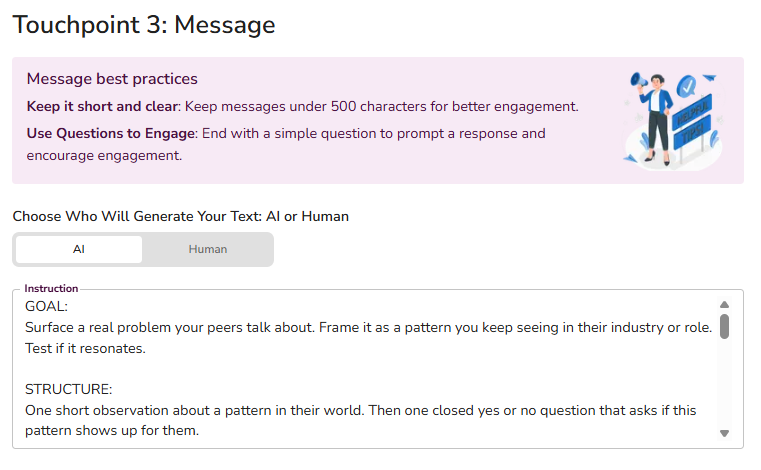
You can always see how the message will look before it goes out. Just below the instruction window, you get a few of your real leads from this campaign. Each one has a Generate button. Click it, and a preview message is built for that lead. If you are not happy with the result, change the instruction and generate the preview again until it reads right.
👉 Note: Changes only apply to leads whose activities are not scheduled yet. If an activity was already scheduled with the original instructions, that lead still gets the original message. New activities will be scheduled with your new instructions.
💡 Tip: Small edits beat big rewrites. Change one thing, give it five days, then read the data before you change anything else.
👉 A connection request and your first message can count as two touches. When your campaign starts by sending a connection request to a new (not-yet-connected) lead, Leadvista AI sends the invite first, then sends your first message only after they accept — so one message you wrote still takes two steps. (If the lead is already a connection, or your campaign is message-only, there is no invite and your first message goes out directly.)
Switch Replies and Nurturing Between Copilot and Autopilot
When you build a campaign, you pick Autopilot or Copilot for both replies and nurturing. On Autopilot, the system keeps sending messages and talking with leads on its own, even after they reply for the first time. On Copilot, the sequence stops after the lead replies. From that point on, the system drafts each message (the Ideal Reply) and waits for you to approve it and send it manually. It does not send anything on its own — you have to chat with leads yourself.
👉 Sequence vs. Nurturing/Reply mode: These modes only govern what happens after a lead replies. The pre-reply Sequence always runs automatically until the first reply, whatever mode you pick. So a lead can still receive scheduled sequence messages even when Nurturing or Reply is set to Copilot — Copilot only kicks in once they reply.
You can switch between Autopilot and Copilot any time after launch — right on the campaign's Settings tab, without reopening the campaign wizard.
Change It for the Whole Campaign
- Open the campaign and click the Settings tab on the campaign page
- Find Reply Message (who responds when a prospect replies) and Nurturing (who follows up when a prospect stops replying)
- Set each one to Autopilot or Copilot

👉 Note: Reply Message and Nurturing are feature-flagged mode selectors — if you don't see them on the Settings tab, they aren't enabled for your account yet. This change only applies to leads whose activities are not scheduled yet — the new leads about to be contacted. Leads already in the funnel keep their old setting.
Change It for Leads Already in the Funnel
If you want the change to reach leads who are already in the sequence, apply it at the lead level:
- Open the campaign, then click Leads in the top menu. This shows the inbox of leads from this one campaign.
- Apply your filters. To change every lead, pick every status. To change only some, pick the relevant statuses or tags.
- Click Select
- Click the three-dot menu on the right
- Click Nurturing or Replies
- In the pop-up, choose Autopilot or Copilot

In the pop-up, pick the mode you want. If you clicked Replies, you choose between Set autopilot and Set copilot. If you clicked Nurturing, you get the same two choices.
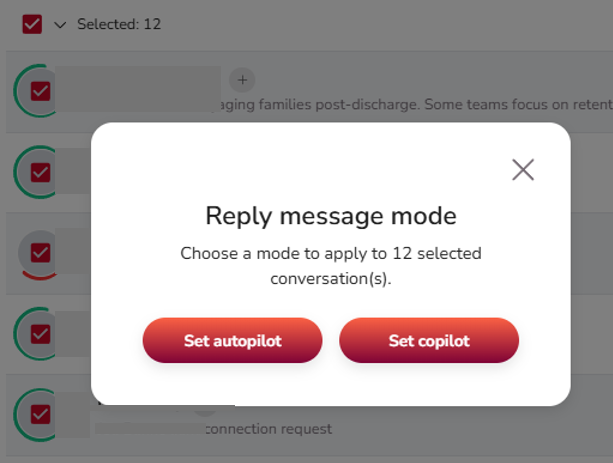
You can do the same for one lead only — open that lead and apply the change the same way.
Terminate a Lead to Remove Them From a Live Campaign
Sometimes you spot a lead who should not be in the campaign. You can kick them out — even while the campaign is live — by terminating them.
To terminate a lead:
- Open the conversation with that lead in the Inbox
- Click the crossed-message icon
- Confirm that you want to terminate the lead
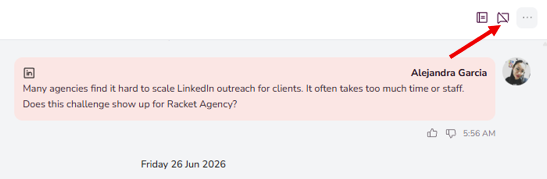
Terminate only means the lead is removed from the campaign, no matter where they are in the sequence:
- Not contacted yet — they will not be contacted at all.
- Accepted a connection request but not replied yet — they stop receiving messages.
- Already replied (your turn to reply) — the your turn to reply status next to their name disappears.
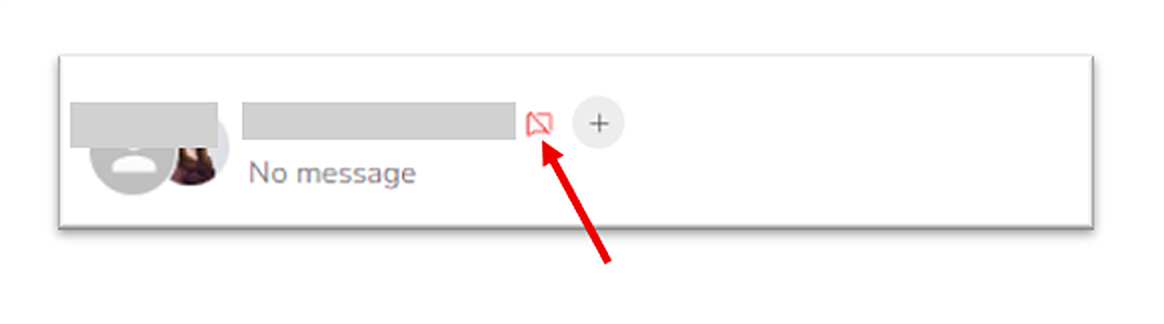
You can tell a lead is terminated by the red crossed-message icon next to their name.
Duplicate a Campaign for a Variation
A live campaign is also a starting point. When you find a winning angle, the fastest way to test a variation — a new persona, a new message, a longer sequence, a new service — is to duplicate the campaign.
How to Duplicate
- Open the Campaigns list
- Find the campaign you want to copy
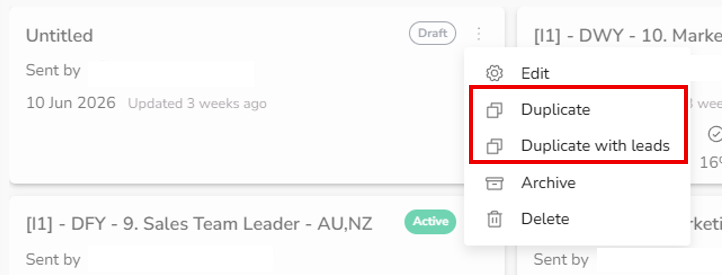
- Click the three-dot menu on that campaign's row
- Pick one of the two duplicate options
The Two Options
| Option | What it copies |
|---|---|
| Duplicate | All campaign settings (sequence, schedule, message, writer, persona) — but no leads |
| Duplicate with leads | All campaign settings plus the same lead list |
Use Duplicate when you want to test the same setup on a new audience.
Use Duplicate with leads when there are still new leads left in the pool and you want to try a different approach on them.
How duplicate protection works when you duplicate with leads:
- Always-on protection: Any lead already messaged by the same sender in the original campaign is automatically skipped in the new one. No toggle needed.
- Agent Duplicate Security (toggle, off by default): When turned on in the campaign Settings tab, protection expands team-wide — any lead contacted by any sender in your agent is excluded. For the full explanation, see the Campaign Settings article.
- Playbook for a smooth handover: Turn on Pause New Outreach on the original campaign first so any in-progress sequences can finish. Then duplicate with leads and launch. Only uncontacted leads receive outreach in the new campaign.

With both options, the new campaign opens in draft mode. You can change anything — the sequence steps, the writer, the delays, the messages, the persona, the lead list — before pressing Launch.
Common Pitfalls
- Hitting the full Pause when you meant the soft pause. You lose all your warm leads. Use Pause New Outreach instead.
- Trying to add or reorder a sequence step after launch. You cannot. Duplicate the campaign and make the change in the copy.
- Editing a message and judging the result the next day. Give every change at least five days before deciding if it worked.
- Letting a Complete campaign sit empty when it was performing well. If it was working, add a fresh leads list.
FAQ
I paused my campaign, but messages are still going out — why?
You most likely used Pause New Outreach, a soft pause. It stops new leads from entering the sequence, but your active conversations continue as normal — everyone already in the sequence finishes their remaining steps. To stop everything at once, use the full Pause instead — just know it freezes your warm leads mid-conversation.
How do I resume a paused campaign or turn outreach back on?
It depends on how you paused it.
- You fully paused the campaign: In your campaigns list, click the "Pause" status chip on the campaign card — it flips straight back to Active and outreach restarts. (The ⋮ menu → Active does the same.) The small soft-pause indicator icon on the card is display-only, so use the Pause chip, not that icon.
- You only paused new outreach (soft pause): Open the campaign's Settings tab and toggle Pause New Outreach back off. (The Status filter on the campaigns list only helps you find paused campaigns; it is not the toggle.)
Either way, the campaign picks up right where it left off — there is no separate "restart" button.
I set up one message, but the sequence is sending two — is that a bug?
No. When your campaign starts by sending a connection request to a new (not-yet-connected) lead, Leadvista AI sends the invite first, then sends your first message only after they accept — so one message you wrote still takes two steps. (If the lead is already a connection, or your campaign is message-only, there is no invite and your first message goes out directly.)
What's the difference between "Duplicate" and "Duplicate with leads"?
Duplicate copies all the campaign settings but none of the leads — use it to test the same setup on a new audience. Duplicate with leads copies the settings and the same lead list — use it to try a different approach on leads who haven't been contacted yet. The same sender won't re-message a lead they've already contacted (always-on protection). When Agent Duplicate Security is on (off by default), that protection expands to all senders in your team. "Contacted" means a message was actually sent, not just that the lead was added.
I re-uploaded a lead list from a finished campaign. Will those people be contacted again?
If Agent Duplicate Security is on, leads who were already messaged in a previous campaign will be skipped in the new one — even if the old campaign has ended. If it's off, the always-on per-sender protection still applies: the same sender won't re-message someone they already reached. To deliberately re-contact people from an old campaign with a different sender, turn Agent Duplicate Security off before uploading the list.
If I duplicate a campaign with leads, will people who weren't contacted in the original get messaged again from the start?
Yes — leads who weren't contacted in the original are eligible to be reached in the duplicate. Leads who were already contacted are automatically skipped (same-sender protection). For a smooth handover, turn on Pause New Outreach on the original campaign first so any in-progress sequences can finish before you launch the duplicate.
How do I stop messaging one person without pausing the whole campaign?
Open that lead's conversation in the Inbox and terminate them. The lead is removed from the campaign at any stage, while everyone else keeps going. A red crossed-message icon marks a terminated lead.
If Replies is set to Copilot, why do messages still go out automatically before anyone replies?
The Replies mode only kicks in after a lead replies. The pre-reply Sequence always runs automatically until that first reply — then Copilot drafts each response for your approval, while Autopilot sends on its own. (Separately, Nurturing is the follow-up mode for leads who go quiet — it fires on silence, not on a reply.)
Can I change the sequence after a campaign is live?
You can edit the delay between steps and the message instruction at each step, but you can't add, remove, reorder, or change the writer of a step. To restructure the sequence, duplicate the campaign and edit the copy before launching.
Key Takeaways
- A campaign turns to Complete on its own once every lead finishes the sequence and 14 days pass with no activity.
- To keep a winning campaign going, add more leads from the campaign Edit → Leads → Add Leads List.
- For an underperforming campaign, use Pause New Outreach from the campaign's Settings tab — it stops new outreach but lets the leads already in the sequence finish.
- After launch you can still edit delays and message instructions, but not the number, order, or writer of sequence steps.
- Switch Reply Message and Nurturing between Autopilot and Copilot any time — in place on the campaign Settings tab (if enabled for your account), or per lead from the Leads view.
- Terminate a lead from the Inbox to pull them out of a live campaign at any stage.
- Duplicate the campaign when you want to test a variation — with or without the original lead list.