
If your campaign isn't sending messages or connection requests, work through this checklist to find the cause and fix it fast.
Prerequisites
- You have at least one active campaign set up in Leadvista AI
- Your LinkedIn account is connected via the Chrome extension
- You have leads added to the campaign
1. Leads Already in Another Campaign
Leadvista AI never contacts the same lead twice across campaigns. If a lead already exists in another active campaign, they'll be skipped automatically.
Leads who are already connected to you will also be skipped if the campaign step includes a connection request.
👉 Note: Check your other campaigns for overlapping lead lists before troubleshooting further.
2. Daily Quota Split Across Too Many Campaigns
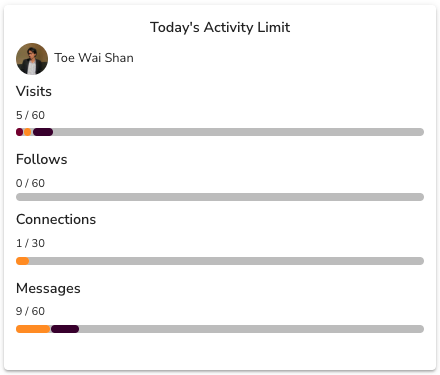
Each LinkedIn profile has its own daily limits, and each one is counted separately:
- up to 30 connection requests
- 60 messages
- 60 profile visits
- 60 follows
There is no single "30 actions per day" limit. Each type keeps its own count, so using up your connection requests does not stop messages, visits, or follows. New or warming-up accounts start lower, then ramp up over time.
When you run several campaigns at once, Leadvista AI divides each limit between them, so a campaign with a small share may look like it is doing little. Time zones matter too — campaigns targeting regions that start later may find the quota already used by earlier ones.
💡 Tip: Pause lower-priority campaigns to concentrate your daily quota on the ones that matter most. For a full breakdown of how quota is split and how warm-up affects your numbers, see How Your Daily Sending Quota Works.
3. Campaign Settings Blocking Activity
Your campaign may be configured to skip certain days, hours, or countries. If a campaign shows zero activity on specific days, check these settings first.
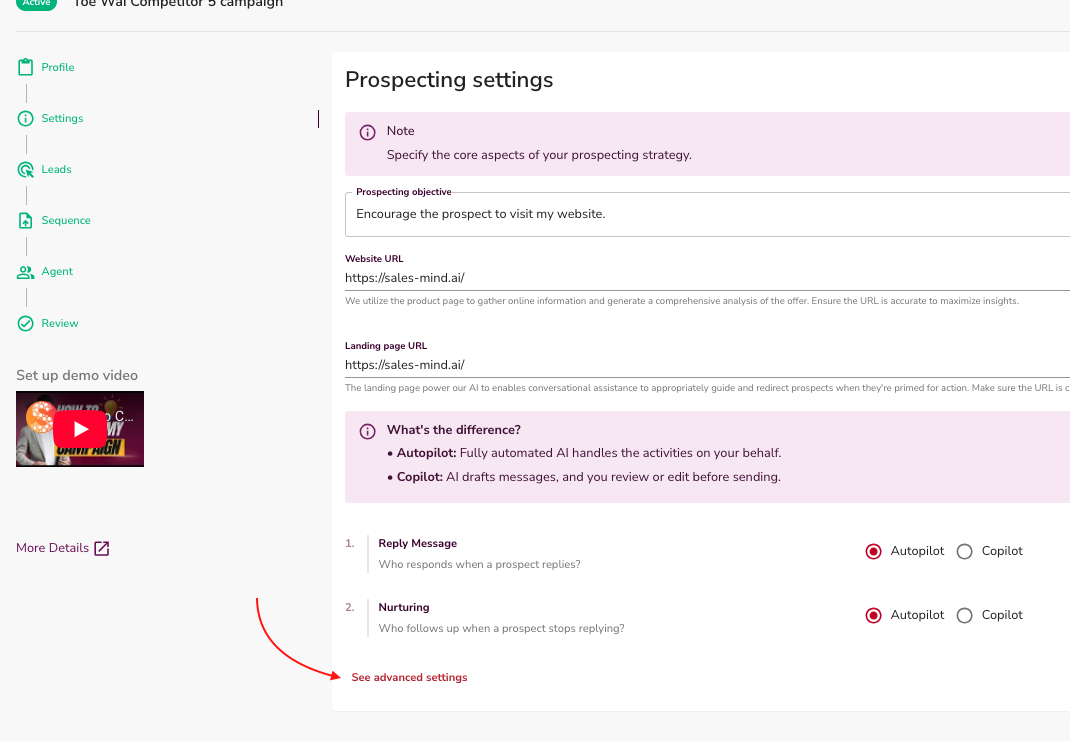
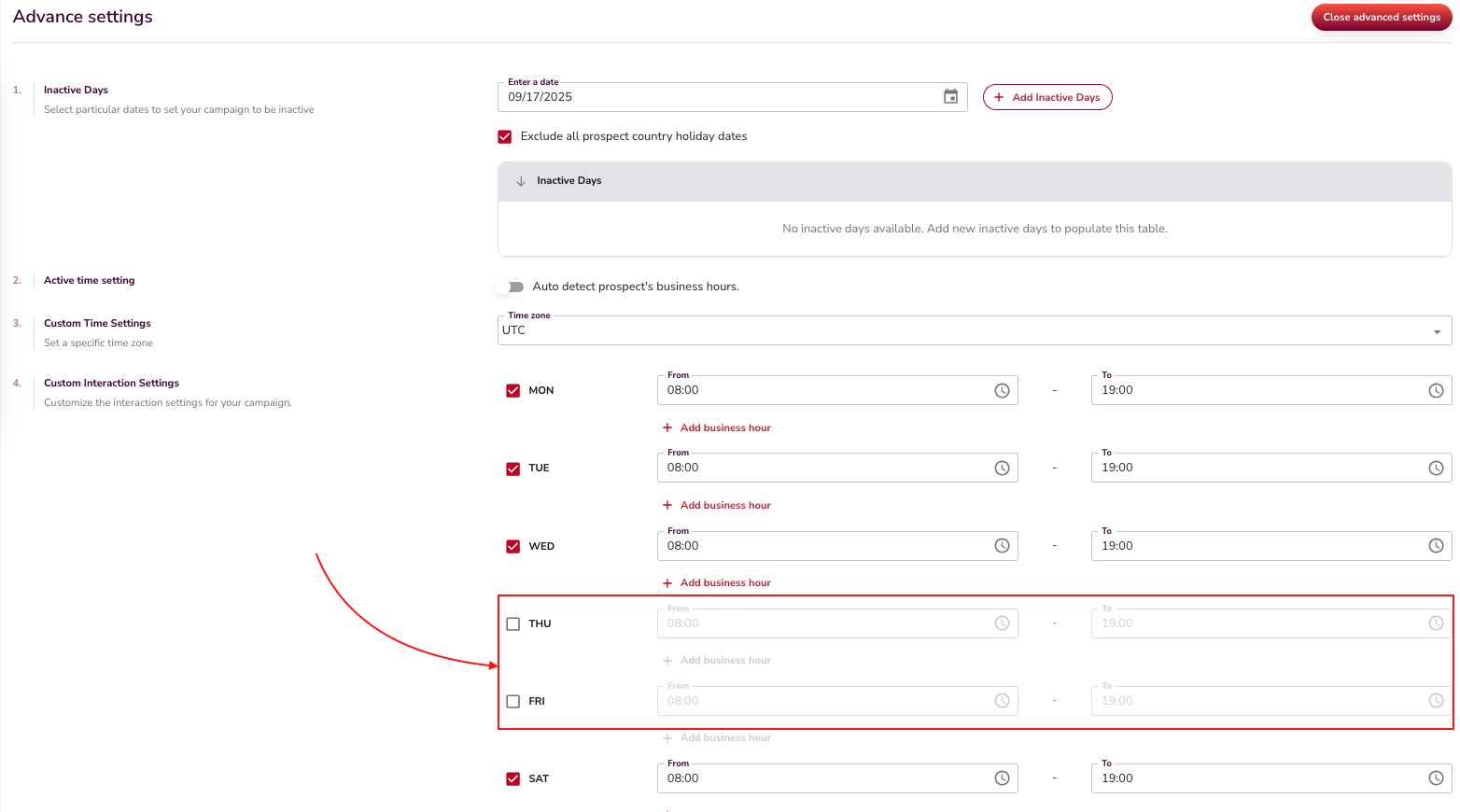
What to check:
- Open the campaign and go to Settings
- Confirm the correct weekdays are enabled (e.g., Thursday and Friday aren't accidentally disabled)
- Check active hours and make sure they cover your target audience's timezone
- Review any country restrictions that might be filtering out your leads
4. LinkedIn Account Disconnected
If your LinkedIn account becomes disconnected, all outreach stops immediately. Common causes:
- You logged out of LinkedIn in your browser
- The Chrome extension was removed or disabled
- The extension lost authorization
How to check: Open your Leadvista AI dashboard. If the status shows Disconnected, you need to reconnect.
⚠️ Warning: No messages or invitations will send while your account is disconnected, even if your campaigns are marked as active.
See the My Account Has Been Disconnected article for step-by-step reconnection instructions.
5. Message Quality Gate Rejection
Every message goes through a quality check. If the check fails, the AI rewrites the message; only the best version ships, and messages that stay below quality standards are held back.
Common symptoms:
| Symptom | Likely cause |
|---|---|
| Campaign runs but sends 0 messages | All messages failed quality checks |
| Some steps are skipped | Some messages passed, some did not |
| You see alerts about grade level | Your Voice DNA writes messages that are too hard to read |
How to check: Look in your Slack or dashboard for quality gate alerts, then fix the cause:
- Grade level alerts (English campaigns): edit your Voice DNA. Use simpler words.
- AI-sounding filler alerts: the AI rewrites these automatically. Repeated alerts usually clear after simplifying your Voice DNA.
- "No call to action" warnings on a final soft-close step: add the marker
NO_CTAto that step's instructions to tell the system it is deliberate. - Repeated low-grade rejections on the same step: check for a contradiction between your campaign setup and your instructions. The classic case: the campaign objective points to your website and a Landing Page URL is set, while the step instructions forbid links. Give the link one home (one step that explicitly carries it) or remove the Landing Page URL.
See Understanding Message Quality Checks for the full list of checks.
6. Campaign Stuck on "Initializing"
A new campaign shows an Initializing status while Leadvista AI builds it in the background. This is normal, and the status usually changes to Active on its own within a short time.
If a campaign stays on Initializing for a long time, it is often because it has no leads list to work from.
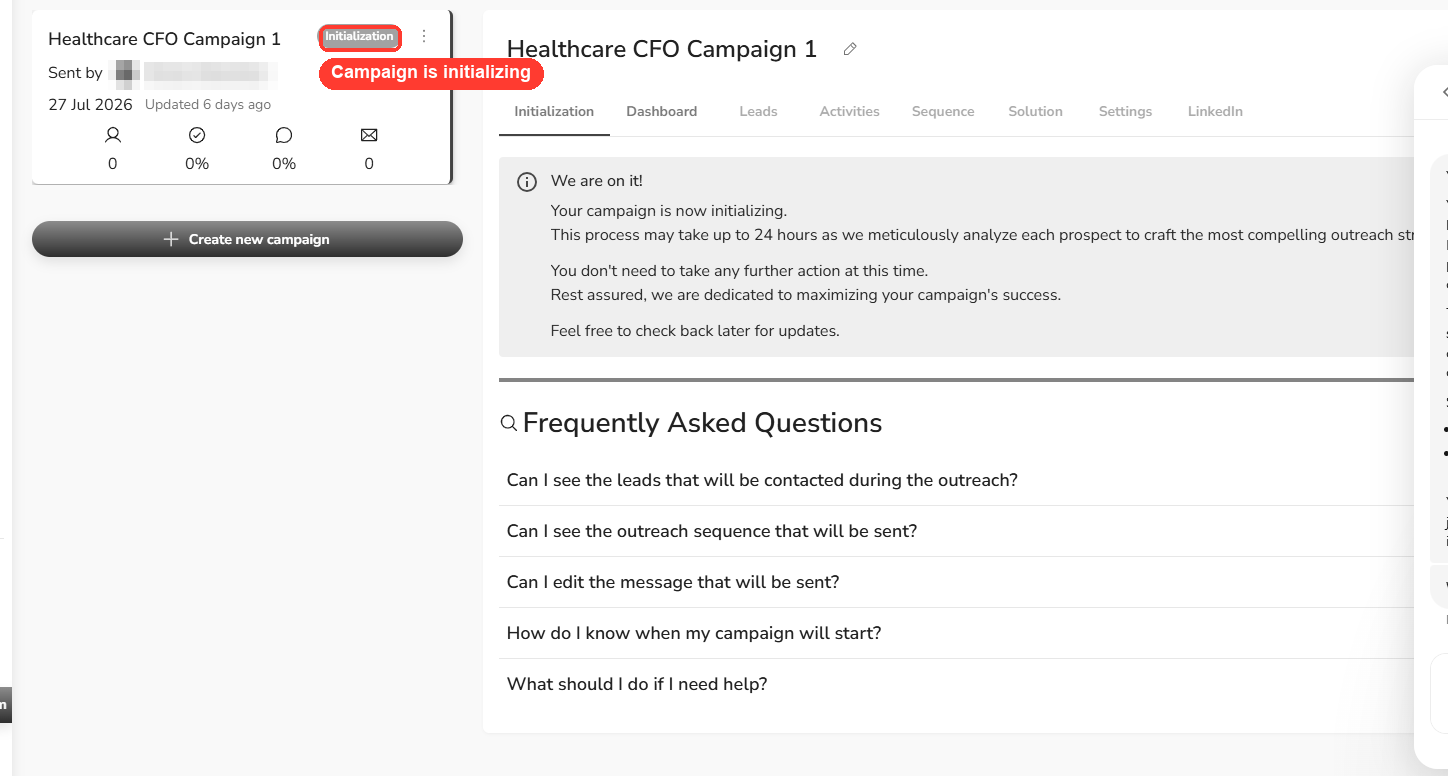
What to do:
- Create a fresh campaign first. The quickest way is to duplicate the campaign that is stuck on Initializing, then add your leads list to it again.
- Give the new campaign a few hours to build.
- If it still stays on Initializing for over 24 hours, the background build likely failed. Contact support so the team can restart it.
7. Running Out of Leads
Seeing only a handful of actions today — a few messages, few or no new connection requests — even though your daily limit is higher? The usual cause is simple: the campaign is running low on leads.
Once you have reached everyone on your list, there is no one new left to contact, so outreach activity slows down. The Accepted invitations graph flattens because there are no new people to reach.
💡 Tip: The Accepted invitations graph shows your acceptance rate — not how many leads you have left to contact.
How to bring in more leads:
- Add a new leads list. Open the campaign settings and use Add new leads list to attach more people.
- Or start fresh. Use Create new campaign to launch outreach to a new audience.

8. Your Lead Count and Sent Requests Don't Match
Your campaign shows a big lead count, but far fewer connection requests went out — for example, 878 leads pulled in, only 421 requests sent — and it says it already hit 100% of its connection requests. This is normal.
Not every lead gets contacted. Leadvista AI filters out some leads automatically before it reaches out, and you can remove others yourself. The bigger number is everyone the campaign pulled in. The smaller number is how many actually qualified to be contacted.
See the split:
- Open your campaign.
- Find the Lead Qualification graph, just below the sequence graph.
- It shows how many leads qualified and how many were filtered out, grouped by reason.
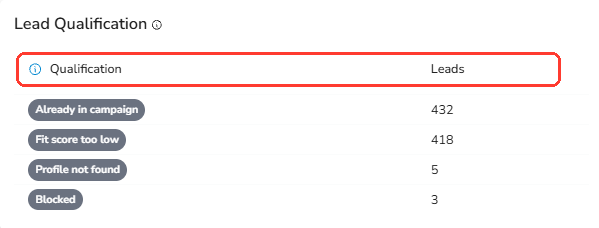
Leads are filtered out automatically for reasons like:
- Already connected — you are already connected, so a connection step has nothing to do
- Already in campaign — the lead is already being contacted in another campaign
- Fit score too low — the lead is below your fit-score threshold
- Blocked — the account is restricted or banned on LinkedIn
- Blacklisted — the lead is on your blacklist
- Out of target — the lead falls outside your campaign's targeting
- Out of network — the lead is too far away in your network to reach
- Profile not found — the LinkedIn profile could not be found
One reason is not automatic — it's you:
- Removed by you (shown as Terminated in the graph) — you ended this lead yourself from your Inbox. You can undo this to put the lead back in the campaign.
So a campaign can reach 100% of its connection requests while its total lead count stays higher. The gap is the leads that were filtered out — not a failure.
9. Sender Has No Seat (Limited vs Business)
If all campaign actions for a sender show as cancelled and nothing sends, the sender may have no seat assigned. A seated sender shows Business next to its name; an unseated sender shows Limited and its outreach and autopilot actions are skipped entirely — this is a hard block, not a throttle. To fix it, go to your Senders Health page, find the sender showing “Limited,” and toggle its seat on — or free up a seat from another sender first if your plan’s seat pool is full. For the full walkthrough, see Sender Has No Seat — Nothing Sends.
FAQ
My actions all show cancelled and nothing has sent — why?
One or more of your senders likely has no seat assigned. An unseated sender shows “Limited” instead of “Business” — its campaign and autopilot actions are skipped entirely until you assign a seat. Go to Senders Health, find the “Limited” sender, and toggle its seat on. See Sender Has No Seat — Nothing Sends for the full fix.
Why did every one of my campaigns stop at the exact same time?
A failed subscription renewal auto-disables all seats and pauses all campaign activity at once. Check your Billing page for an outstanding invoice and pay it — your seats and campaigns resume automatically once the payment clears.
My campaign is sending far less than my daily limit — why?
You may be running several campaigns at the same time. Leadvista AI splits your daily sending limits across all active campaigns, so each one gets a smaller share. Pause the campaigns you don’t urgently need to concentrate your quota on the ones that matter most.
My campaign stopped sending overnight — what happened?
If your LinkedIn account became disconnected, all outreach stops immediately. Open your dashboard and check whether your sender shows a Disconnected status. If it does, reconnect via the Chrome extension. See the My Account Has Been Disconnected article for step-by-step instructions.
My campaign has almost no activity today even though my daily limit isn’t full — why?
You may have reached everyone on your current lead list. Once the campaign has contacted all available leads, activity slows to a stop. Open the campaign, add a new lead list, or create a new campaign to reach a fresh audience.
What's Next
- Still not running? Check the My Account Has Been Disconnected article
- Want to optimize quota usage? Review how many campaigns are running in parallel and pause any that aren't urgent
- Seeing errors on specific leads? Those leads may have restrictions on their LinkedIn profiles preventing contact