
Your CRM keeps your contacts, deals, and activity in one place. Leadvista AI connects to your CRM so your outreach and your records stay in sync. You set this up under Agent → Integrations, and Leadvista AI handles the rest.
Supported CRMs
Leadvista AI connects with three CRMs:
- GoHighLevel (shown as LeadConnector in the app)
- HubSpot
- Pipedrive
Each one supports contact sync, deal and activity export, pipeline sync, and custom field mapping.
Connect your CRM
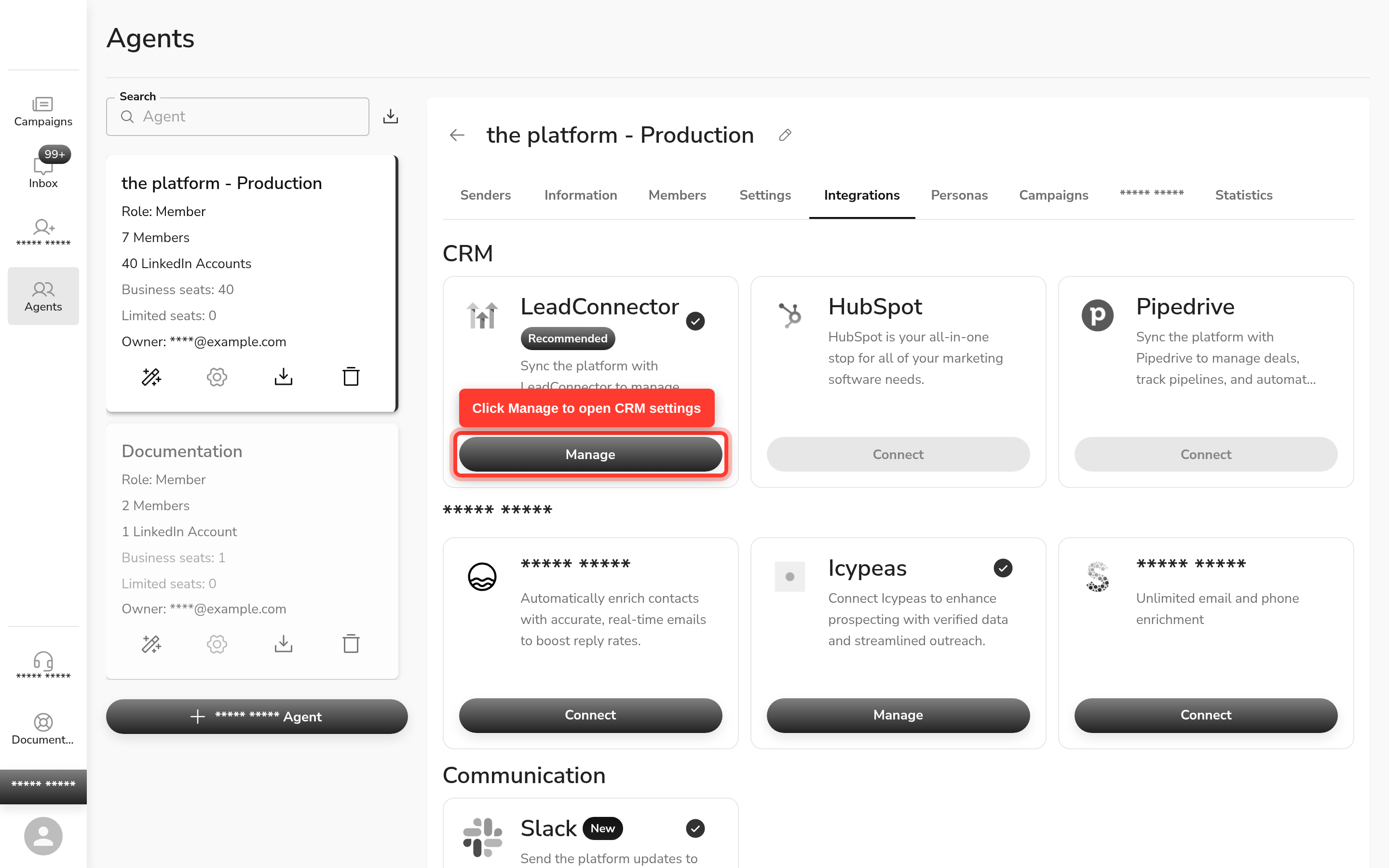
- Open Leadvista AI and go to Agent → Integrations.
- Find the card for GoHighLevel (LeadConnector), HubSpot, or Pipedrive.
- Click Connect and sign in to your CRM account.
- Approve the access request so Leadvista AI can read and write records.
- Back on the CRM card, click Manage to open its settings. Your deals, tasks, pipeline sync, and field mapping options live there.
Inside Manage you will find four areas: Connection details, Settings (sync event), Custom field mapping, and Pipeline & opportunity sync. Work through them in order the first time you connect — each area builds on the previous one.
After you connect, Leadvista AI starts syncing your contacts and activity.
What syncs
Not everything syncs both ways. This table shows the direction for each record type. Leadvista AI also stores each prospect's LinkedIn profile URL directly in their CRM contact record — so your team can jump straight to a prospect's LinkedIn profile from inside your CRM without searching.
| Record type | Direction |
|---|---|
| Contacts | Two-way |
| Messages | Two-way |
| Deals | Created in your CRM by Leadvista AI |
| Notes | Exported to your CRM |
| Tasks | Exported to your CRM |
| Meetings | Imported, then linked to a deal |
| Calls | Import only |
| Emails | Import only |
Two-way means changes flow in both directions. Exported or created means Leadvista AI writes the record into your CRM. Import only means Leadvista AI pulls that history in but does not push it back.
Pipeline sync, deals, and field mapping
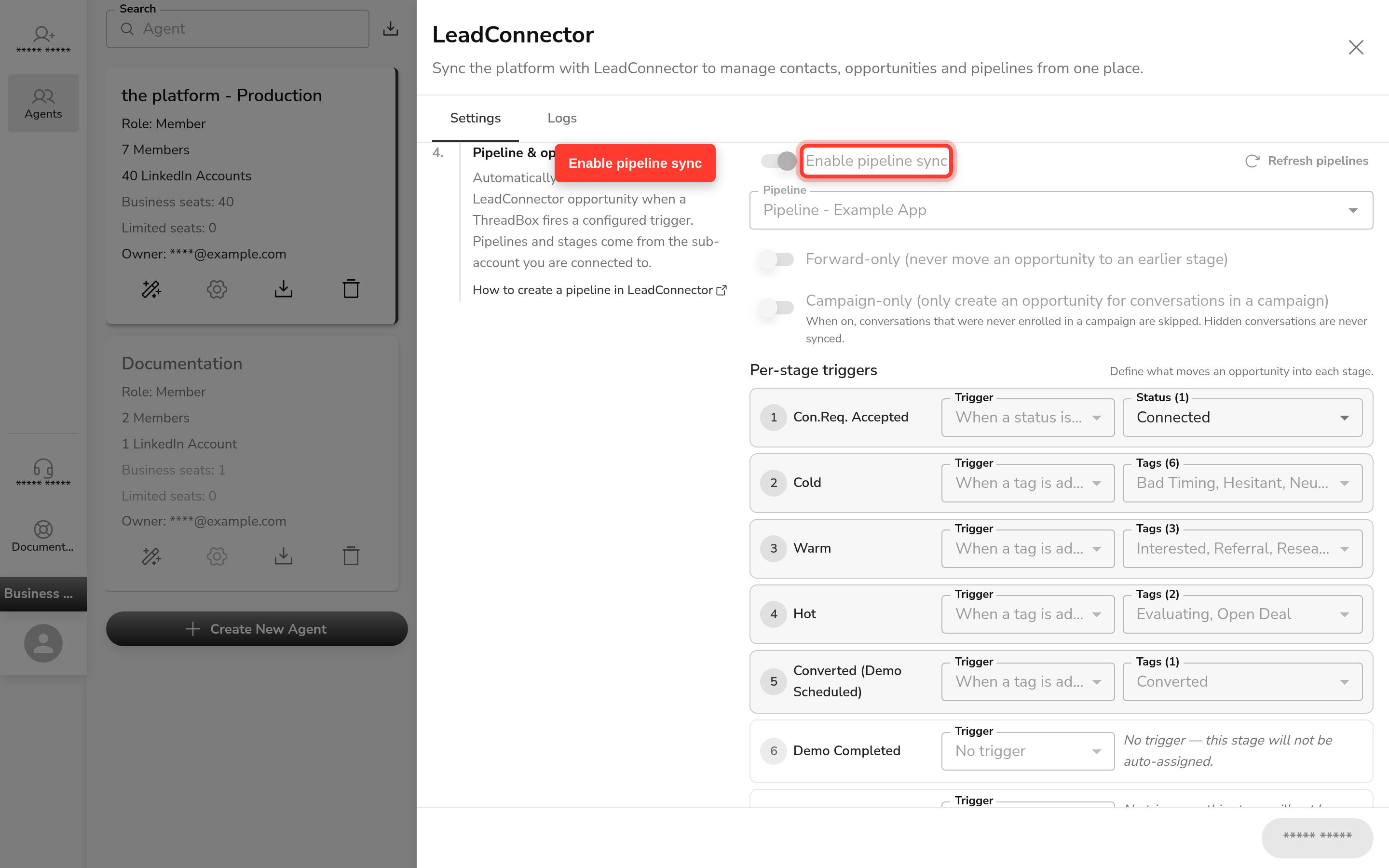
Leadvista AI can automatically create and move deals in your CRM pipeline as your leads progress. Open Agent → Integrations, click Manage on your CRM card, then work through the Pipeline & opportunity sync panel.
Enable pipeline sync
Turn on Enable pipeline sync to activate deal automation. Once on, Leadvista AI creates or moves a deal in your CRM whenever a configured trigger fires for a lead.
Choose your pipeline
Use the Pipeline dropdown to select which CRM pipeline your deals land in. Only one pipeline can be active at a time. The pipelines shown come directly from your connected CRM sub-account — if you do not see the right pipeline, check that it exists in your CRM first, then click Refresh pipelines.
Per-stage triggers
Per-stage triggers are the core of pipeline sync. They tell Leadvista AI exactly when to create or move a deal — and to which CRM stage. For each trigger you configure:
- Pick the Leadvista AI trigger (for example: lead replies, lead is tagged hot, meeting is booked).
- Pick the CRM pipeline stage the deal should move to when that trigger fires.
This means deals can progress through your pipeline automatically at every meaningful moment — not just when a meeting is booked. A lead who replies can move to "Contacted", a hot lead can move to "Qualified", and a booked meeting can move to "Meeting scheduled" — all without manual input.
Forward-only: Turn on Forward-only (never move an opportunity to an earlier stage) to prevent a deal from moving backward in your pipeline. With this on, if a trigger fires but the deal is already at a later stage, Leadvista AI skips the move. This is useful when multiple triggers could overlap.
Field mapping
Field mapping controls which data Leadvista AI writes into your CRM contact record — and which CRM field it lands in. This matters because your CRM contact holds the data your sales team uses: if the LinkedIn profile URL, inbox URL, or other key fields are not mapped, your team cannot access them from inside the CRM.
To set up field mapping: in the Custom field mapping panel, match each Leadvista AI field (for example: LinkedIn profile URL) to the corresponding custom field in your CRM. The CRM field must already exist in your CRM as a TEXT, LARGE_TEXT, or LINK type before it appears in the dropdown.
Once mapped, Leadvista AI writes these fields to the contact record every time it syncs — so your CRM always has the latest data.
Why this matters: Without field mapping, your team sees contact names and activity, but loses the direct LinkedIn link, the Leadvista AI inbox URL, and any other enriched fields. With field mapping in place, your team can click straight to a prospect's LinkedIn profile from inside your CRM — no searching required.
This feature works the same way for GoHighLevel (LeadConnector), HubSpot, and Pipedrive.
Automatic tasks
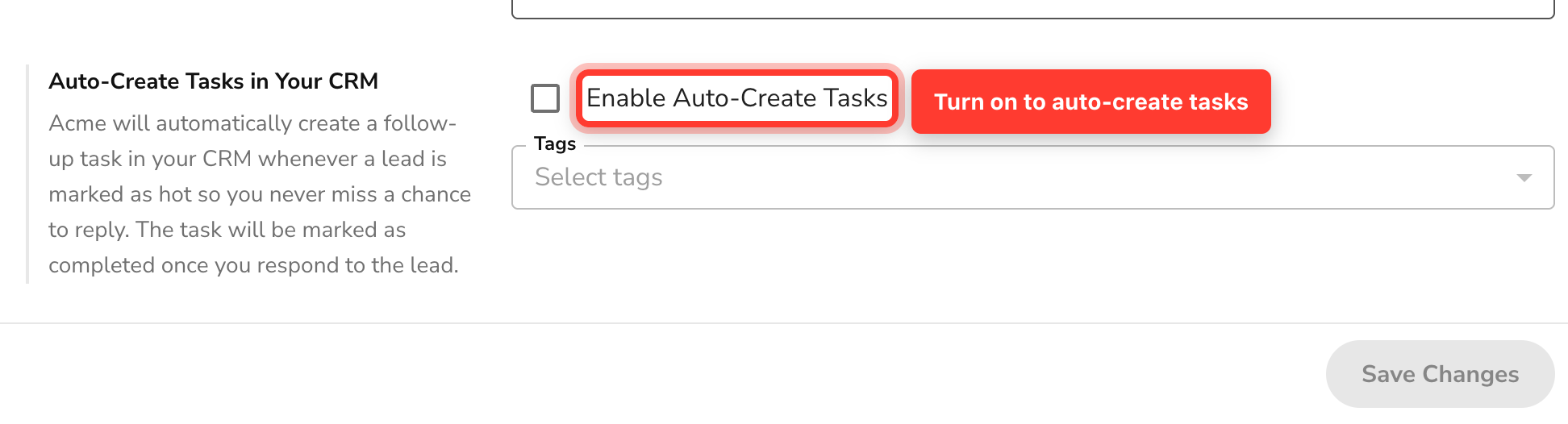
Leadvista AI can create follow-up tasks for you automatically. Click Manage on your CRM card to set this up:
- Auto-create tasks — turn on Enable Auto-Create Tasks and Leadvista AI adds a follow-up task when a lead is marked hot through your tags.
Leave Auto-Create Tasks off if you prefer to add tasks by hand.
When to use auto-create tasks: Turn this on if your team works leads in the CRM after initial contact from Leadvista AI. The task appears in your CRM assigned to the contact, so nothing falls through the gap between outreach and follow-up.
FAQ
What is the difference between manual and automatic sync?
Automatic sync runs on its own as your leads reply and book meetings. Manual sync lets you push a record yourself when you want it in your CRM right away. Use manual sync to test the connection or send one record now.
Where do I connect my CRM?
Go to Agent → Integrations in Leadvista AI. Pick your CRM card — GoHighLevel (shown as LeadConnector), HubSpot, or Pipedrive — then click Connect and sign in.
How does a lead reach my CRM's pipeline when they reply?
When a lead hits a configured stage or trigger — such as replying, being tagged, or booking a meeting — Leadvista AI can create or move a deal in your CRM pipeline. This works for HubSpot, Pipedrive, and GoHighLevel. Go to Agent → Integrations, click Manage on your CRM card, and turn on Enable pipeline sync.
Do per-stage triggers work for HubSpot and Pipedrive as well as GoHighLevel?
Yes. The same pipeline sync panel — including per-stage triggers, the pipeline dropdown, and the forward-only option — is available for GoHighLevel (LeadConnector), HubSpot, and Pipedrive. The pipeline stages shown in the dropdown come from whichever CRM you are connected to.
What happens if a deal is already at a later stage when a trigger fires?
By default, Leadvista AI moves the deal to the configured stage regardless. If you turn on Forward-only (never move an opportunity to an earlier stage), Leadvista AI will skip the move when the deal is already at a later stage — preventing the deal from going backward in your pipeline.