
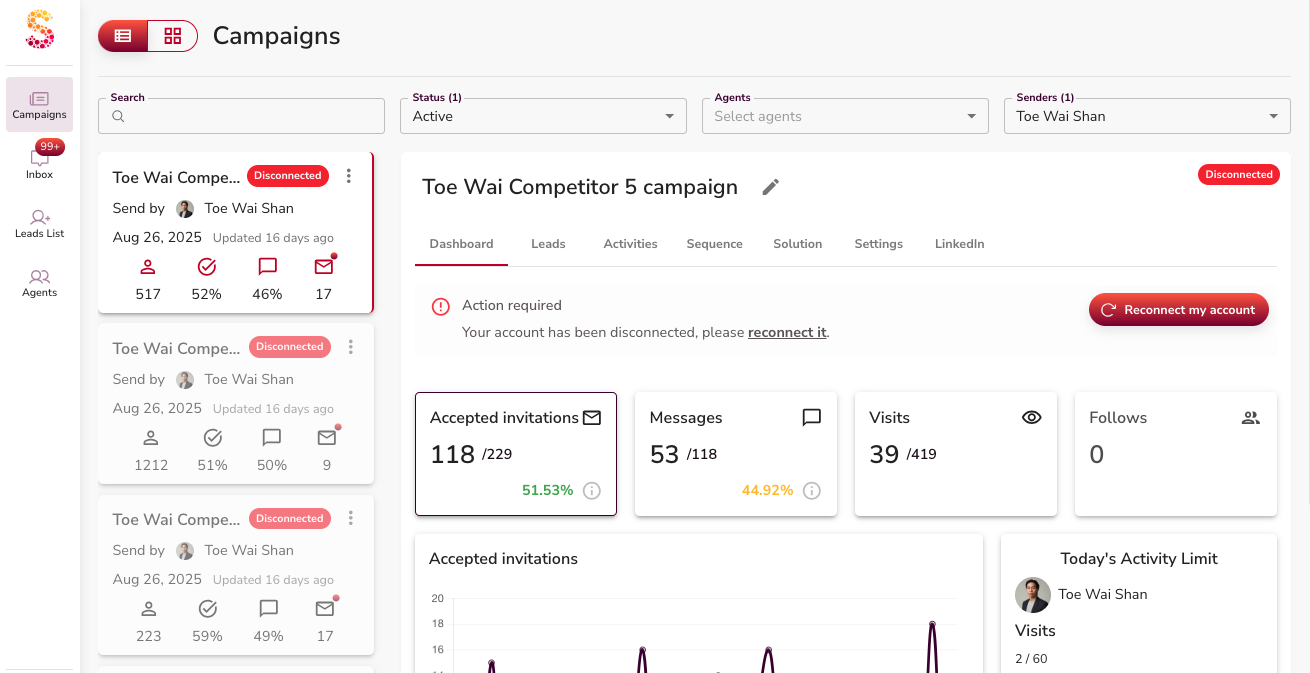
When your campaigns show as Disconnected, Leadvista AI has lost access to your LinkedIn session. No outreach or activities will run until you reconnect.
Why You Got Disconnected
Leadvista AI stays connected to your LinkedIn account through the Chrome extension. The extension silently syncs your LinkedIn session every 15 minutes while your browser tab is open. If that sync fails, Leadvista AI marks your account as Disconnected and pauses all outreach.
Why Does It Keep Happening?
The most common reasons the sync fails:
- You signed out of LinkedIn in your browser — the extension loses the session and the sync stops.
- The Chrome extension was disabled or removed — this happens after a browser update or restart, sometimes without warning.
- You are using a different Chrome profile — the extension can only read LinkedIn session data from the profile it is installed in. If LinkedIn is open in a different Chrome profile than the one with the extension, you will keep getting disconnected.
- A temporary infrastructure issue in your region — occasionally, a temporary issue with Leadvista AI's connection infrastructure in your region can disconnect multiple accounts at the same time. This resolves on its own, but you will need to reconnect manually.
- A sender account has been inactive for a long time — if a team member has not run a campaign in a while, their account may show as Disconnected or require reconnection.
👉 Tip: Stay logged into LinkedIn in the same browser where the extension is installed. Avoid clearing cookies or switching browser profiles.
How to Reconnect
- Go to your Campaigns page. You will see a Disconnected popup for the affected sender.
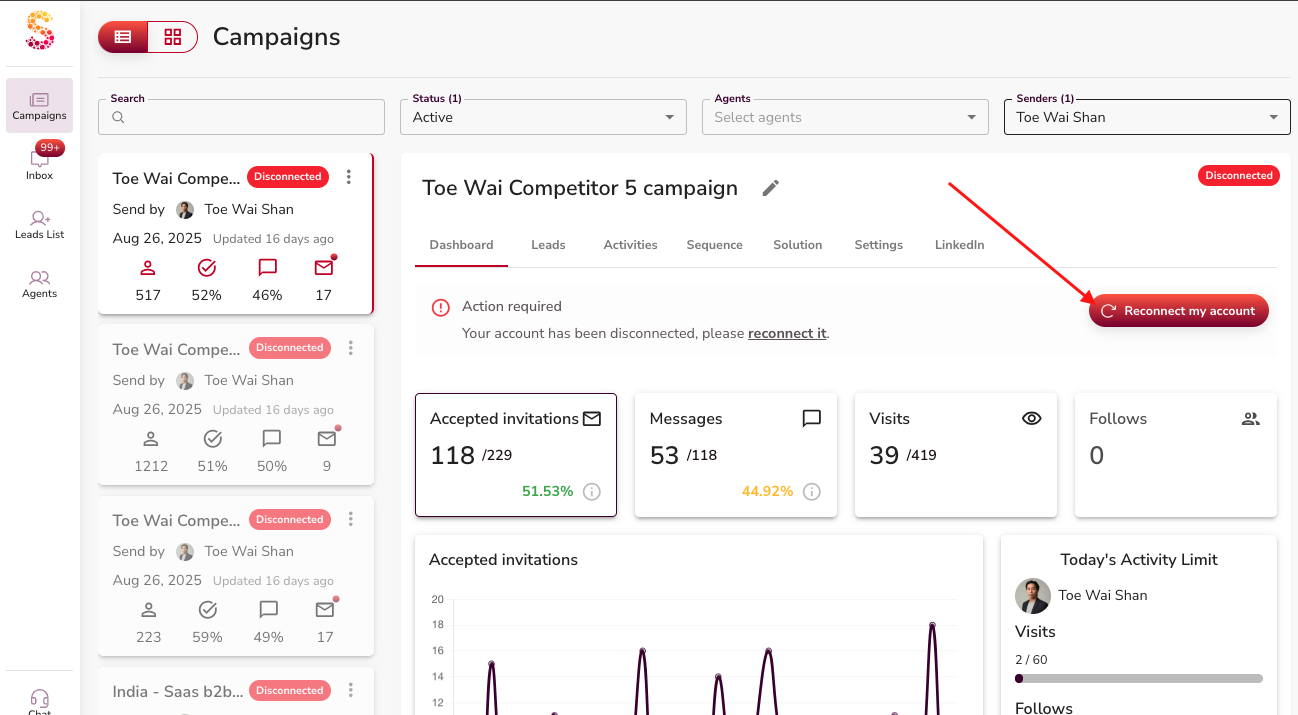
- Click Reconnect my account.
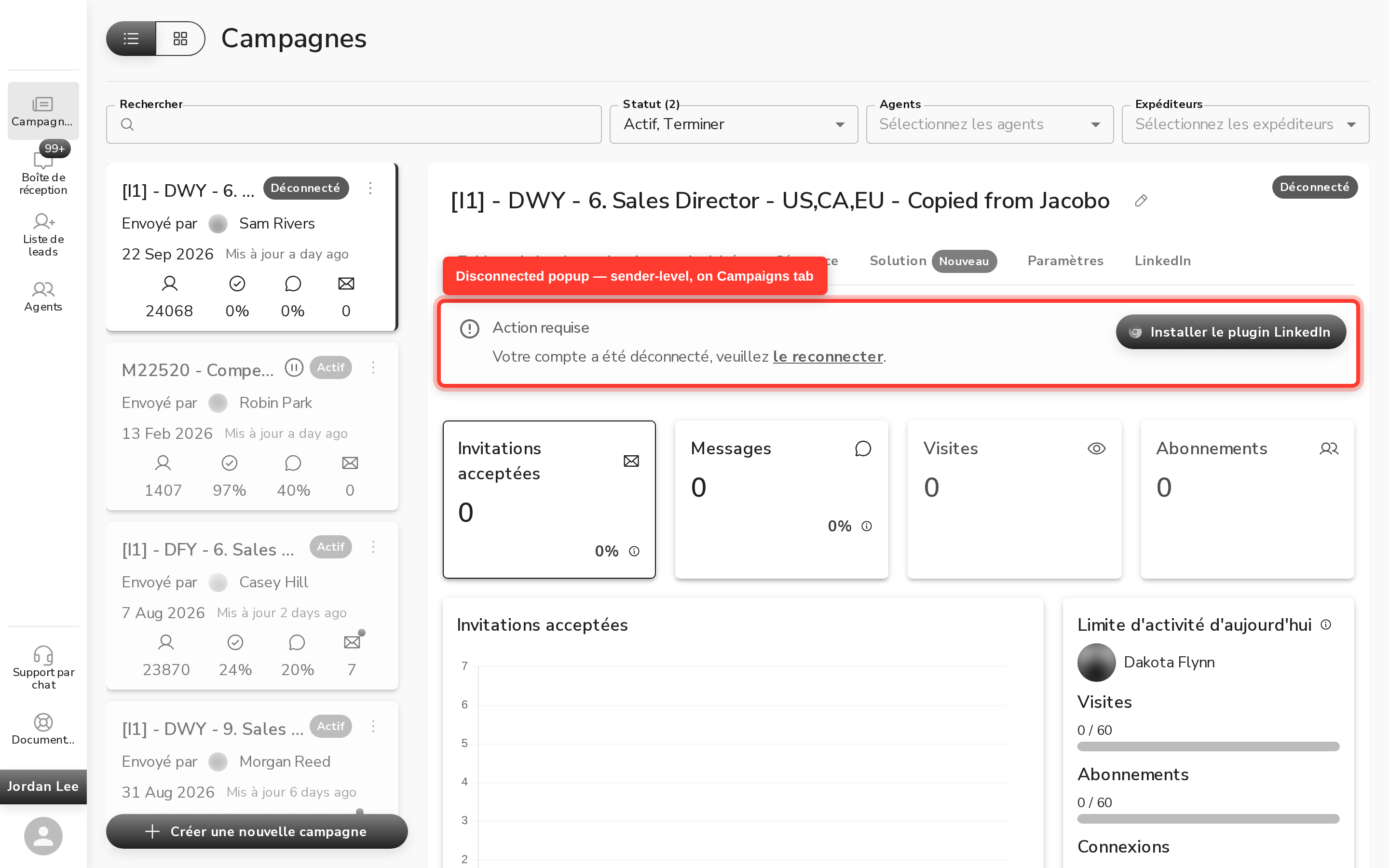
- If the extension is installed and enabled, a reconnect dialog will appear. It captures fresh LinkedIn session data from the extension.
- Confirm to reconnect. Your account refreshes within about a minute.
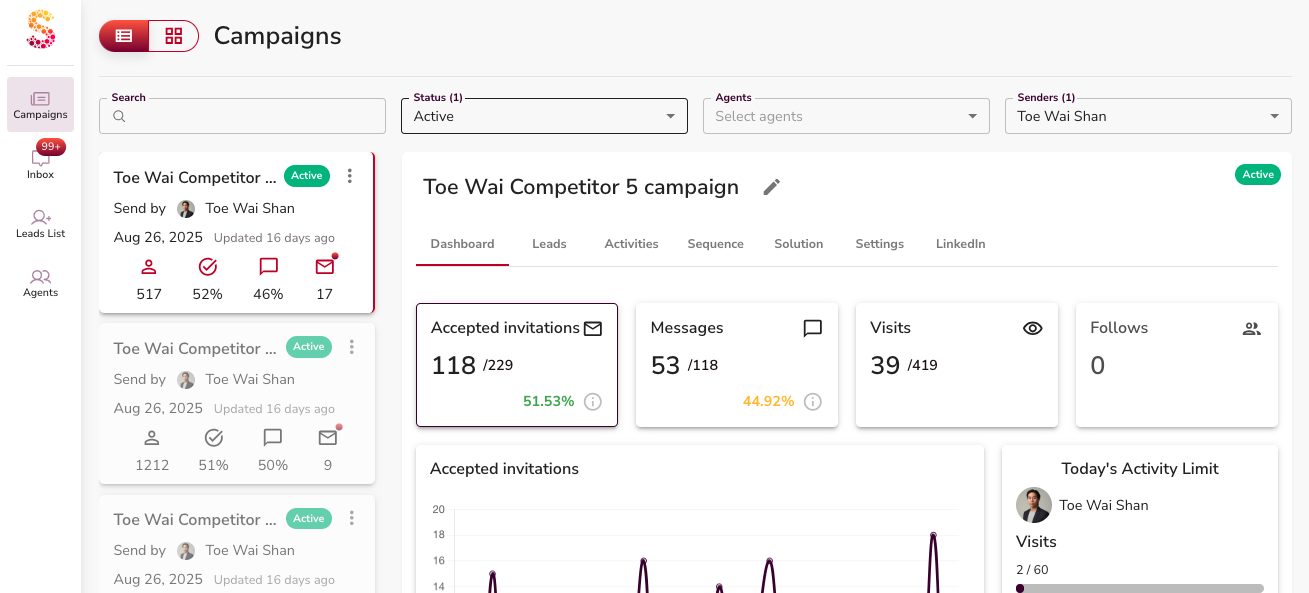
Expected result: You will see "Your LinkedIn account has been updated successfully."
Reconnect Doesn't Work — It Just Takes Me to the Chrome Extension
If clicking Reconnect opens the Chrome Web Store instead of a reconnect dialog, the Chrome extension is not currently installed or enabled in your browser.
To fix this:
- Go to https://chromewebstore.google.com/detail/pnhbmfhkdolhidmjfieeadlijkhlfiln and install the extension.
- If it is already installed, open Chrome's Extensions menu (the puzzle icon, top right) and check that the Leadvista AI extension is turned on.
- Return to https://leadvista.axionet.ai and click Reconnect again.
Which Thing Is Disconnected? How to Find Out
There is one Disconnected status in Leadvista AI. Both "not logged into LinkedIn" and "extension sync failed" show the same red Disconnected state. To find the cause, check two things:
- Are you still logged into LinkedIn at linkedin.com in the same browser where the extension is installed?
- Is the Chrome extension installed and enabled in that browser?
If the answer to either question is no, that is your cause. Fix it, then press Reconnect.
Reconnecting Your Account
When your account is disconnected, a Reconnect my account button appears at the top of the page when you log in — regardless of the reason or how long the account has been disconnected. Click it to restore your connection.

What Happens After Reconnecting
- Your account reconnects within about a minute.
- All campaigns resume automatically.
- No data, leads, or sequences are lost.
⚠️ Warning: Outreach picks up from the next scheduled send window — it does not back-fill. Leadvista AI paces your daily limits across your active hours to stay safe on LinkedIn. Any connection requests or messages that were due during the disconnection are not sent retroactively once you reconnect. If the account was down for part of the day, that portion of the day's capacity is skipped and your quota resets fresh the next day. This is why you may see little or no activity right after a mid-day reconnect, even though everything shows Connected.
👉 Note: You don't have to keep checking on your own — whenever your account disconnects, we send you an email so you can reconnect quickly. The sooner you reconnect, the fewer send windows are lost.
FAQ
Why does my account keep getting disconnected?
The most common cause is that LinkedIn logged you out in your browser, or the Chrome extension was disabled. Leadvista AI syncs your LinkedIn session every 15 minutes through the extension; if that sync fails, your account will show as Disconnected. Check that you are logged into LinkedIn and that the extension is installed and enabled.
I press Reconnect and it just takes me to the Chrome extension — why?
This means the Chrome extension is not currently installed or enabled in your browser. Install or re-enable it at https://chromewebstore.google.com/detail/pnhbmfhkdolhidmjfieeadlijkhlfiln, then return to https://leadvista.axionet.ai and press Reconnect again.
I keep getting disconnected even though I never log out — why?
The most likely reasons are: (a) a browser update disabled the extension, (b) you have multiple Chrome profiles and LinkedIn is open in a different profile than the one where the extension is installed, or (c) a temporary regional infrastructure issue affected multiple accounts at once. Check that the extension is enabled, make sure you are using one browser profile, and reconnect.
A team member's account shows as Disconnected — how do they reconnect?
They need to log into their Leadvista AI profile. A "Reconnect my account" button appears at the top of the page when they log in — regardless of how long the account has been disconnected. They click it to restore their connection.
Multiple accounts in my team got disconnected at the same time — is something wrong?
Occasionally, a temporary infrastructure issue in a specific region can disconnect multiple accounts simultaneously. This resolves on its own; each affected user will need to reconnect manually.