
Every AI output in Leadvista AI, from sequence messages to lead scores, status tags to MBTI reads, can be rated accurate or inaccurate with one click. Add an optional comment and you have just taught the agent what "good" looks like for your business.
This guide covers the 5 places you can leave feedback in the inbox, the team dashboard that aggregates every vote, and a simple weekly habit that makes your AI measurably smarter over time.
1. Your first feedback in 5 seconds
Open any conversation in your inbox. Thumbs are never far away.
- Find an AI-authored message: look for the 👍👎 cluster below the message bubble.
- Click thumbs up or down: the feedback drawer opens on the right.
- Toggle Accurate / Inaccurate: your selection is already set based on which thumb you clicked.
- Add a comment (optional but recommended), one line is enough: "Wrong tone for this ICP" or "Perfect timing suggestion".
- Click Submit: done.
💡 Tip: Flag both accurate and inaccurate outputs. An AI that only ever sees "this was wrong" learns less than one that sees a balanced mix.

What happens after you submit feedback
When you click thumbs-down on a message, Leadvista AI does not just log your feedback. It also triggers a retry.
The AI tries to write a better version of the same message. Each retry:
- Looks at what went wrong (too complex, wrong tone, missing info)
- Adjusts the language to fix it
- Ships the new version
The AI tries up to 3 times per message. If all 3 attempts fail, the message is skipped and the campaign moves to the next step.
💡 Tip: A thumbs-down on a message that is too complex tells the AI to simplify. A thumbs-down on a message with the wrong tone tells the AI to adjust. Your feedback is the fastest way to improve quality.
How Voice DNA affects retries
If your Voice DNA is very formal, the AI may struggle to simplify messages on retry. The Voice DNA instructions (be professional, sound like an executive) can conflict with the retry goal (make it simpler).
If you see the same message getting rejected after multiple thumbs-down, try editing your Voice DNA to be less formal.
2. The 5 feedback surfaces
Thumbs appear at five touchpoints across the inbox. Each captures a different AI output type.
2.1 AI messages (sequence + reply)
When Leadvista AI delivers a message on its own: that is, the AI sent it without you clicking Send, a compact thumbs cluster appears under that bubble once it has been delivered. Click either thumb to open the feedback drawer with that exact message pre-loaded.
| Message type | When it appears | Thumbs? |
|---|---|---|
| Sequence message | First outreach written by the AI as part of a campaign | ✅ |
| Reply message | AI draft reviewed and sent by you (Copilot mode) | ❌ |
| Autopilot reply | AI sent automatically without review | ✅ |
| Autopilot nurturing | AI scheduled and sent a follow-up on its own | ✅ |
The Reply message is the only one without thumbs: by the time you click Send, you have already taken ownership of that message, so Leadvista AI treats it as your text, not the AI's. The other three never pass through your review, so the AI is what gets rated.

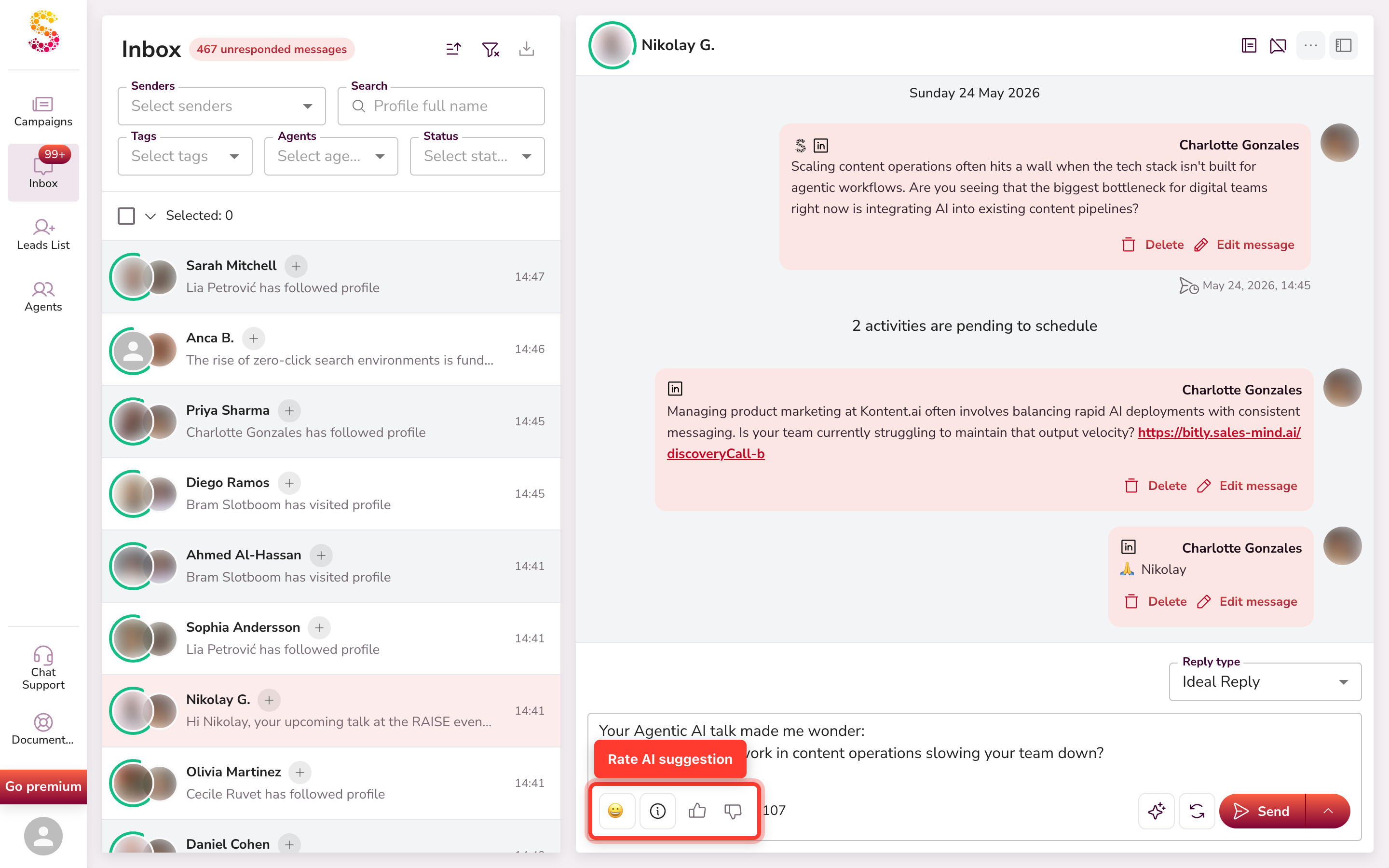
2.2 AI reply suggestion (before sending)
When the AI suggests a reply in the composer, a thumbs cluster sits next to that suggestion. Use it to rate the suggestion itself, even if you decide not to send it.
2.3 Lead status tag
The colored status pill (Interested, Neutral, Not interested, etc.) shown next to each conversation, and on the profile header, has a small "Is this status accurate?" prompt inside its tooltip with thumbs.
Click a thumb to tell the AI whether the status classification matches the actual conversation.

2.4 Lead scoring
The score badge on the prospect's avatar and the Lead Scoring chip in the right-hand profile panel both expose thumbs in their tooltip with the prompt "Was this score accurate?"
The same tooltip appears wherever the avatar is shown, conversation list, conversation header, and profile header.


2.5 MBTI personality
The MBTI chip in the profile panel exposes thumbs in its tooltip. The AI assigns a personality type based on conversation signals. If the read feels off, or spot-on, one click tells the agent to adjust.

#> 💡 Tip: All five surfaces open the same feedback drawer (see Section 3). The context preview shows exactly what you are rating, so you never have to guess which vote belongs to which output.
3. The feedback drawer
Clicking any thumb opens a right-hand drawer with three sections:
- Context preview: the exact AI artifact you are rating, rendered inline so reviewers know what the vote is about.
- Sentiment toggle: Accurate (thumbs up) or Inaccurate (thumbs down). You can flip it before saving.
- Comment field: up to 3,000 characters of free text. The textarea is resizable: drag the bottom-right corner for more space.
Permissions:
| Action | Who can do it |
|---|---|
| Submit a vote | Anyone with inbox access |
| Edit own vote | Only the submitter |
| Delete own vote | Only the submitter |
| Delete any vote | Admin only |
Each user owns their own row per artifact, two teammates voting on the same message create two independent records.

4. AI Feedback dashboard
Go to Agents > pick an agent > AI Feedback tab.
This is where you see the full picture of your team's feedback and spot which AI capabilities need the most attention.
4.1 KPI header
Four cards summarize the team signal at a glance:
| Card | What it tells you |
|---|---|
| Total feedback | Every vote ever cast on this agent's artifacts |
| Positive rate | Share of votes that are Accurate |
| Accurate | Raw count of thumbs up |
| Inaccurate | Raw count of thumbs down |
4.2 Balance alert
A banner appears when your team has cast at least 5 votes and the positive rate is either above 60% or below 40%. The AI learns best when both signals are present, so the banner nudges the team toward a healthier mix.
4.3 Breakdown by type
One row per artifact type, Sequence message, Reply message, Reply suggestion, Autopilot reply, Autopilot nurturing, Lead scoring, Lead status, MBTI, Adaptive microsite, with a progress bar, share-of-total, accurate count, and inaccurate count.
Use this to spot which AI capability needs the most work at a glance.
4.4 Filterable list
Below the breakdown, the full list of votes with these filters:
- Search: searches inside comment text
- Member: narrow to one submitter
- Type: narrow to one artifact type
- Sentiment: Accurate or Inaccurate
- From / To: date range
Click any row for a read-only drawer showing the full AI snapshot plus the comment.
💡 Tip: Onboard new teammates by filtering to their Member row. Coach them on what kind of output to flag and what makes a helpful comment.

5. Privacy & tenant model
| Context | Who sees what |
|---|---|
| In the inbox | Each user only sees their own thumbs (filled vs. empty state) |
| Agent dashboard | Every team member reads every teammate's vote |
| Across agents | Votes never leak between agents, feedback on Agent A stays in Agent A |
| Admin view | Admins see all votes across all agents they can access |
6. A weekly rhythm that works
A short habit compounds fast:
Daily (in the inbox, 30 seconds)
Thumb 1–2 AI outputs per active conversation as you work them. You are already reading the messages, one extra click is all it takes.
Weekly (in the dashboard, 5 minutes)
Open the AI Feedback tab. Scan the breakdown. Pick the lowest-performing type and write 2–3 rich comments on representative examples.
Monthly (with your manager, 15 minutes)
Review the positive rate trend per artifact type. Decide whether to refine persona descriptions, adjust autopilot rules, or retrain on new patterns.
The agent gets measurably better every cycle. Most teams see a visible improvement in output quality within 2–3 weeks of consistent feedback.
What's next
Your feedback is one half of the loop. The other half is what the AI learns from it:
- How AI personalizes outreach
- How lead scoring works behind the scenes
- Match the AI's voice to yours