
If a campaign seems to be missing from your dashboard, don't worry — in almost every case the campaign is still there. Leadvista AI never deletes campaigns or any other data automatically. There are two reasons a campaign may not appear: your status filters are hiding it (most common), or someone with access to your agent manually deleted it.
This article walks you through both scenarios and what to do next.
1. Check Your Status Filters First (Most Common Cause)
The most frequent reason a campaign appears to be missing is that the Status filter at the top of the Campaigns page is hiding it.
Every campaign has one of these statuses:
- Active — currently running and sending outreach
- Pause — temporarily stopped
- Draft — created but never launched
- Complete — finished naturally
- Archive — soft-deleted (can no longer run, but the data is still visible)
If a status isn't checked in the filter, campaigns with that status will be hidden from the list.

Example: If you're looking for an active campaign but only have Draft and Pause checked, your active campaign will not appear — and it can look like it has been deleted.
How to fix it
- Go to the Campaigns page
- Open the Status dropdown at the top of the page
- Tick every status (Active, Archive, Complete, Draft, Pause)
- The full list of campaigns will appear
💡 Tip: The same Status filter also hides a campaign's stats — if you can't see analytics for a campaign, check the Status filter first.
2. The Campaign Was Manually Deleted
If you've checked the filters and the campaign is still nowhere to be found, then someone with access to the agent removed it manually. Leadvista AI never deletes campaigns on its own — every removal is a user action.
There are two different ways a campaign can be removed, and they behave very differently:
Archive (Soft Delete) — Always Recommended
- The campaign stops running and cannot be relaunched
- All data is preserved: leads, inbox conversations, analytics, and performance history remain visible
- You can revisit the campaign anytime to review results
- Archived campaigns appear in your list when the Archive status filter is enabled
Delete (Hard Delete) — Permanent
- The campaign and all its data are permanently removed from our database
- Leads, inbox conversations, analytics, and contact history are gone
- The data cannot be recovered, by you or by our team
⚠️ Warning: Neither archiving nor deleting can be undone. Always archive instead of deleting unless you are absolutely certain you no longer need the data.
3. Hidden Cause: A Sender Was Removed from the Agent
A common reason multiple campaigns disappear at once is that a sender was removed from the agent.
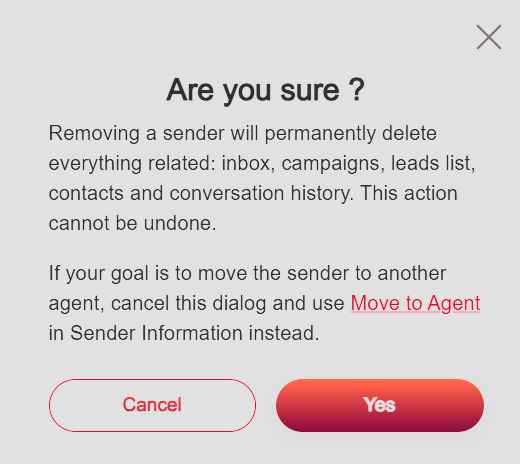
In Leadvista AI, every campaign is tied to a sender. When a sender is removed, everything attached to that sender is permanently deleted, including:
- All campaigns belonging to that sender
- The Leadvista AI inbox for that sender
- Leads, contacts, and conversation history
The application warns you about this before you confirm, so the action is always intentional:
Moving a Sender Between Agents
A frequent mistake is removing a sender in order to add them to a different agent. You don't need to do that. Use Move to Agent instead:
- Open the sender's profile
- Go to Sender Information
- Click Move to Agent
- Select the destination agent
This keeps all campaigns, leads, and conversation history intact while transferring the sender.
👉 Note: Bulk-removing senders to "reorganize" your agents will permanently delete every campaign attached to them. Always use Move to Agent instead.
4. What to Do If Your Campaigns Were Really Deleted
If a campaign or sender was deleted, the data is gone and cannot be restored. That said, reach out to our support team — we'll do our best to help you recover it. The fastest way to rebuild is by creating a Mission, which generates several optimized campaigns at once — much faster than recreating each campaign by hand.
- Re-add any deleted senders to your agent
- Create a new Mission to rebuild your outreach
- Review who has Admin access on the agent — only Admins can delete senders and campaigns
Key Takeaways
- Leadvista AI never deletes campaigns automatically
- The most common reason for a "missing" campaign is the Status filter hiding it — always check this first
- The Status filter also hides campaign stats — missing analytics = check the filter first
- Archiving preserves data; deleting removes it permanently
- Removing a sender permanently deletes all their campaigns, leads, and conversations
- To move a sender between agents, use Move to Agent — never delete and re-add
- Neither archiving nor deleting can be undone
If you've checked everything above and still can't find your campaign, reach out to support and we'll help you trace what happened.
FAQ
Why don't my campaign stats from a recent date show up, but older ones do?
This is almost always the Status filter. If the campaign that ran on that date has a different status now (for example, it's Complete or Archived), it may be hidden from the list — and its stats hidden with it. Open the Status filter, tick all statuses, and look for the campaign again.
Why can I see my campaigns on the dashboard but a teammate can't?
The most likely cause is that your teammate's Status filter is set differently. Each user's filter is independent. Ask them to open the Status filter on their Campaigns page and tick all statuses — the missing campaigns should reappear.
What is the difference between archiving and deleting a campaign?
Archiving stops the campaign but keeps all your data — leads, inbox, analytics, and history stay visible. Deleting removes the campaign and all its data permanently — recovery is not guaranteed, but reach out to support and we'll do our best to help. Always archive unless you are certain you no longer need the data.
How do I find a campaign I archived earlier?
Go to the Campaigns page, open the Status filter, and tick Archive. Archived campaigns will appear in the list. You can review their results but you cannot relaunch them.
All my campaigns from one sender disappeared at once — what happened?
This usually means that sender was removed from the agent. Removing a sender permanently deletes all their campaigns, leads, and conversation history. To move a sender between agents without losing data, use the Move to Agent option in the sender's profile under Sender Information.